
This chapter shows how to create or setup new pages in Magento by using the following steps:
Step (1): Login to your Magento Admin Panel.
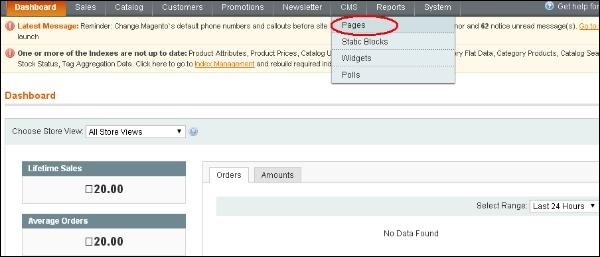
Step (2): Go to CMS menu and click on the Pages option.
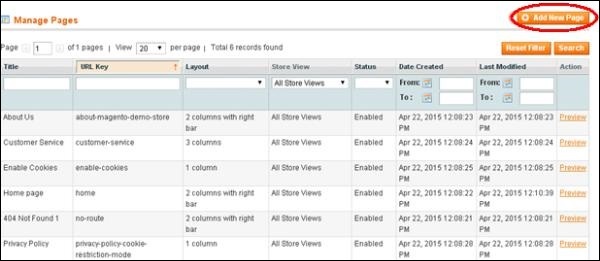
 Step (3): It will list some of the existing pages as shown in the screen. If you want to add new page, click on the Add New Page button.
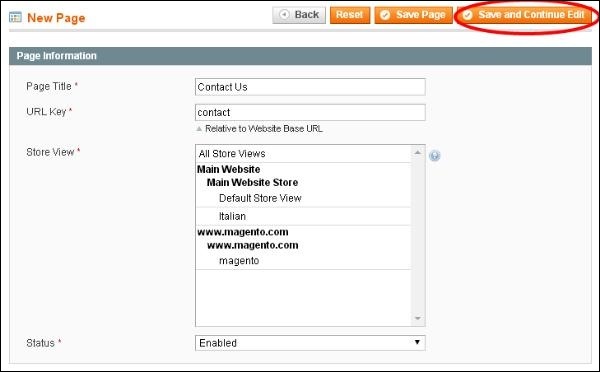
 Step (4): Next, specify the title for the page using Page Title field, enter the page URL identifier using URL Key option, enable the page using Status dropdown menu and click on the Save and Continue Edit button.
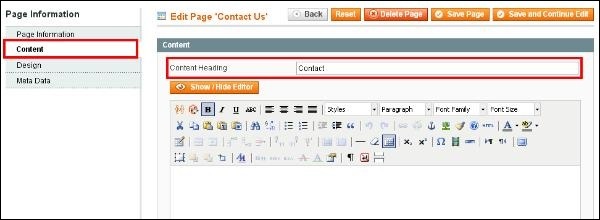
 Step (5): When you save the page, it will go to Content section asking heading for the page using Content Heading field and page content. Click on Save and Continue Edit button to precede next step.
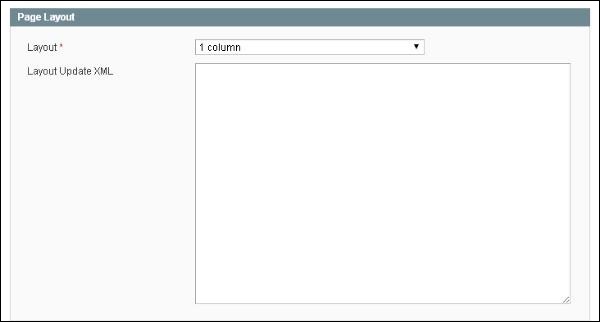
 Step (6): After done with the content section, you can design the page by using Design section which has two sections i.e. Page Layout and Custom Design.
The Page Layout section contains a Layout option which allows selecting layout as per your choice and Layout Update XML option inserts the XML code.
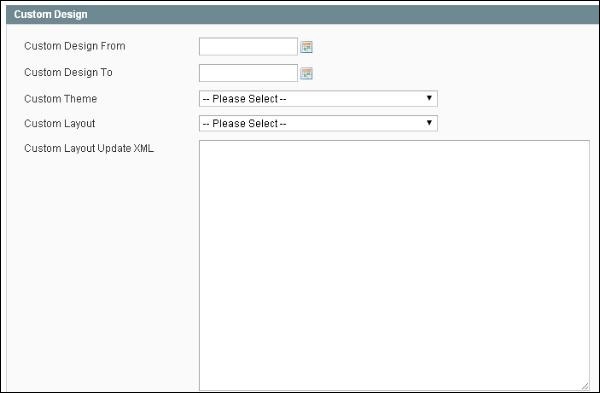
 The Custom Design section contains fields such as:
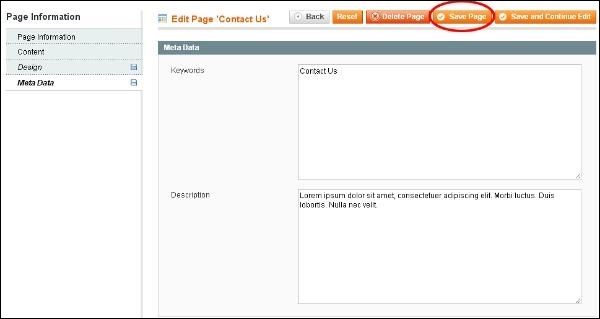
 Step (7): The Meta Data section contains Keywords field which gives keyword for a page name and the Description field specifies the description the given page. Click the Save Page button to save your page.
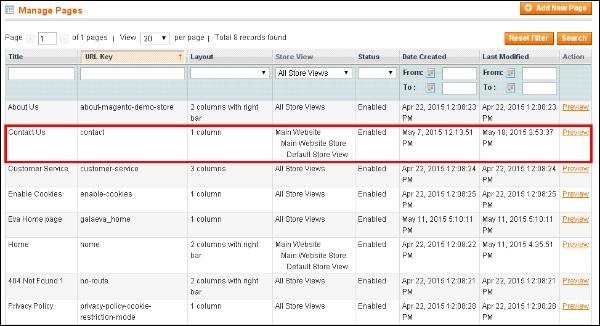
 Step (8): Now you can see the page created in the list.
Step (1): Login to your Magento Admin Panel.
Step (2): Go to CMS menu and click on the Pages option.
Step (3): It will list some of the existing pages as shown in the screen. If you want to add new page, click on the Add New Page button.
Step (4): Next, specify the title for the page using Page Title field, enter the page URL identifier using URL Key option, enable the page using Status dropdown menu and click on the Save and Continue Edit button.
Step (5): When you save the page, it will go to Content section asking heading for the page using Content Heading field and page content. Click on Save and Continue Edit button to precede next step.
Step (6): After done with the content section, you can design the page by using Design section which has two sections i.e. Page Layout and Custom Design.The Page Layout section contains a Layout option which allows selecting layout as per your choice and Layout Update XML option inserts the XML code.
The Custom Design section contains fields such as:- Custom Design From and Custom Design To are used to set start date and end date for the design change
- Custom Theme option allows to select theme for your page using dropdown menu
- Custom Layout option allows to select a layout as per your choice
- Custom Layout Update XML option inserts custom XML code
Step (7): The Meta Data section contains Keywords field which gives keyword for a page name and the Description field specifies the description the given page. Click the Save Page button to save your page.
Step (8): Now you can see the page created in the list.

No comments:
Post a Comment