
This chapter describes how to install new Magento theme on your
store's frontend. You can use Magento Connect to install theme. For
installing theme, you need to get the extension key and then use it for
the installation through Magento Connect.
We will see how to get extension key by using the Magento theme.
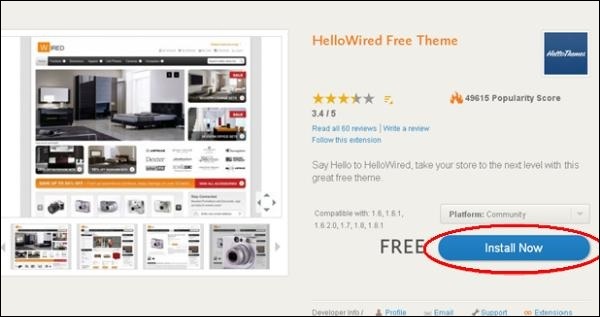
Step (1): Go to Magento theme page and then click on the Install Now button. You need to register a new account or login with an existing account to get extension key.
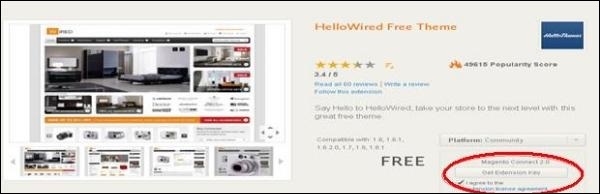
 Step (2): Check, I Agree to the Extension license agreement option and click on the Get Extension Key button.
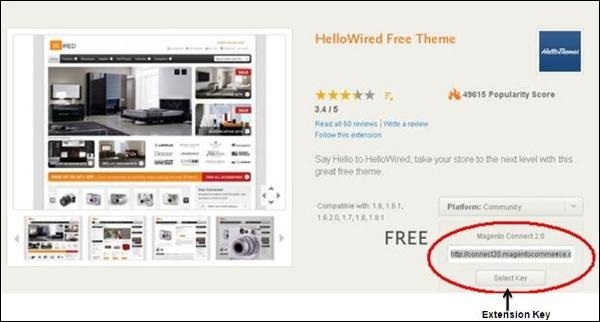
 Step (3): Click the Select Key button and copy the extension key.
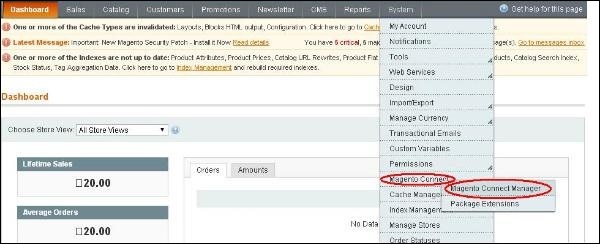
 Step (4): Now login to your Magento Admin Panel and go to the System --> Magento Connect -->Magento Connect Manager option.
 Step (5): Again, it will ask for login, enter your credentials to redirect to Magento Connect Manager window.
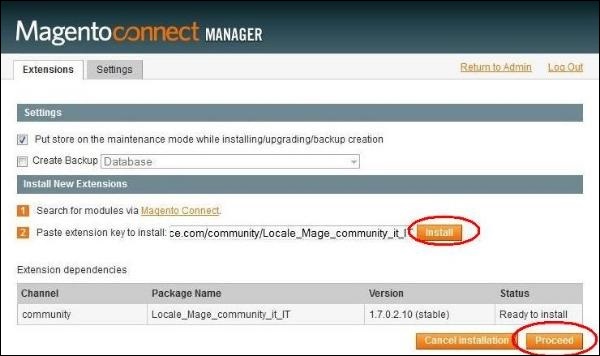
Step (6): Now under Extensions section, paste the Extension Key (that you copied in step 2) and click on Install button. It will display status as "Ready to install" and click on Proceed button to install the language.
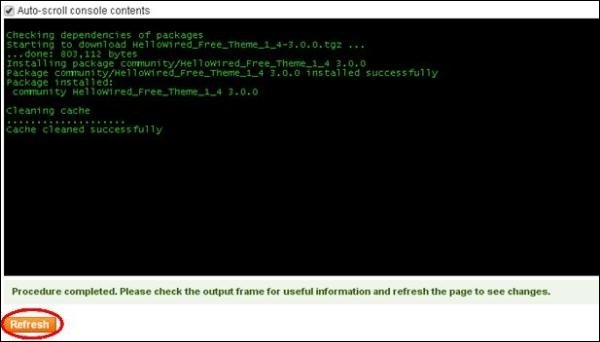
 Step (7): It will check for dependencies of packages and
display the message as Cache cleaned successfully. Refresh the page by
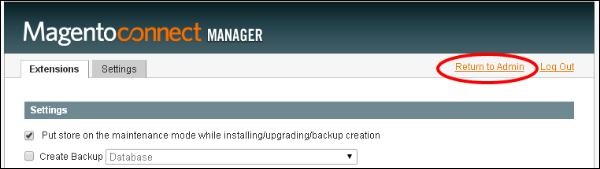
clicking on the Refresh button and go to an admin dashboard page by clicking on Return to Admin link.
Step (7): It will check for dependencies of packages and
display the message as Cache cleaned successfully. Refresh the page by
clicking on the Refresh button and go to an admin dashboard page by clicking on Return to Admin link.
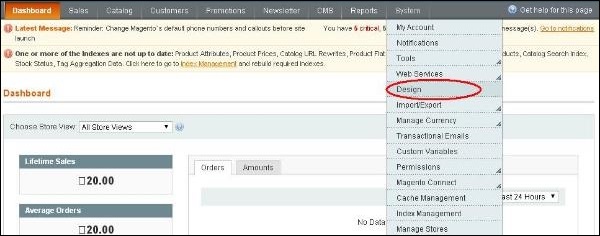
 Step (8): To activate the theme on your store's frontend, go to System menu and click on the Design option.
 Step (9): To add a new theme, click on the Add Design Change button.
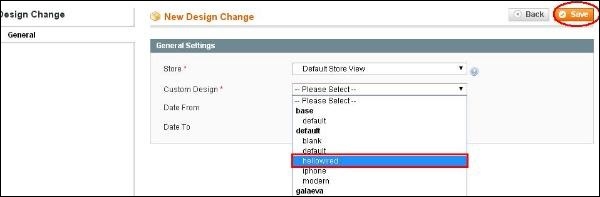
 Step (10): Select the theme from the Custom Design dropdown menu and click the Save button to apply your theme for the store.
We will see how to get extension key by using the Magento theme.
Step (1): Go to Magento theme page and then click on the Install Now button. You need to register a new account or login with an existing account to get extension key.
Step (2): Check, I Agree to the Extension license agreement option and click on the Get Extension Key button.
Step (3): Click the Select Key button and copy the extension key.
Step (4): Now login to your Magento Admin Panel and go to the System --> Magento Connect -->Magento Connect Manager option.
Step (5): Again, it will ask for login, enter your credentials to redirect to Magento Connect Manager window.Step (6): Now under Extensions section, paste the Extension Key (that you copied in step 2) and click on Install button. It will display status as "Ready to install" and click on Proceed button to install the language.
Step (7): It will check for dependencies of packages and
display the message as Cache cleaned successfully. Refresh the page by
clicking on the Refresh button and go to an admin dashboard page by clicking on Return to Admin link.
Step (8): To activate the theme on your store's frontend, go to System menu and click on the Design option.
Step (9): To add a new theme, click on the Add Design Change button.
Step (10): Select the theme from the Custom Design dropdown menu and click the Save button to apply your theme for the store.

No comments:
Post a Comment