This class is an abstract base class for gtk.Hscrollbar and
gtk.Vscrollbar widgets. Both are associated with an Adjustment object.
The position of the thumb of the scrollbar is controlled by scroll
adjustments. The attributes of adjustment object are used as follows −
| lower |
The minimum value of the scroll region |
| upper |
The maximum value of the scroll region |
| value |
Represents the position of the scrollbar, which must be between lower and upper |
| page_size |
Represents the size of the visible scrollable area |
| step_increment |
Distance to scroll when the small stepper arrows are clicked |
| page_increment |
Distance to scroll when the Page Up or Page Down keys pressed |
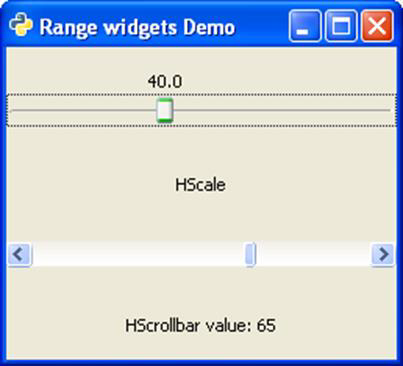
The following program shows an HScale and an HScrollbar widget placed
in a VBox added to the toplevel window. Each of them is associated with
an adjustment object.
adj1 = gtk.Adjustment(0, 0, 101, 0.1, 1, 1)
self.adj2 = gtk.Adjustment(10,0,101,5,1,1)
An gtk.HScale widget is a slider control attached with adj1. Its
update policy, number and position of drawing value are set up as
follows −
scale1 = gtk.HScale(adj1)
scale1.set_update_policy(gtk.UPDATE_CONTINUOUS)
scale1.set_digits(1)
scale1.set_value_pos(gtk.POS_TOP)
scale1.set_draw_value(True)
gtk.HScrollbar provides a horizontal scrollbar. It is associated with adj2 object. Its update policy too is set to CONTINUOUS.
self.bar1 = gtk.HScrollbar(self.adj2)
self.bar1.set_update_policy(gtk.UPDATE_CONTINUOUS)
In order to display instantaneous value of the scrollbar, 'value-changed' signal of
the adjustment object — adj2 is connected to callback function
on_scrolled(). The function retrieves the value property of adjustment object and displays it on a label below the scrollbar.
self.adj2.connect("value_changed", self.on_scrolled)
   def on_scrolled(self, widget, data = None):
   self.lbl2.set_text("HScrollbar value: "+str(int(self.adj2.value)))
Example
Observe the following code −
import gtk
class PyApp(gtk.Window):

   def __init__(self):
      super(PyApp, self).__init__()
      self.set_title("Range widgets Demo")
      self.set_default_size(250, 200)
      self.set_position(gtk.WIN_POS_CENTER)

      adj1 = gtk.Adjustment(0.0, 0.0, 101.0, 0.1, 1.0, 1.0)
      self.adj2 = gtk.Adjustment(10,0,101,5,1,1)

      scale1 = gtk.HScale(adj1)
      scale1.set_update_policy(gtk.UPDATE_CONTINUOUS)
      scale1.set_digits(1)
      scale1.set_value_pos(gtk.POS_TOP)
      scale1.set_draw_value(True)

      vb = gtk.VBox()
      vb.add(scale1)
      lbl1 = gtk.Label("HScale")

      vb.add(lbl1)
      self.bar1 = gtk.HScrollbar(self.adj2)
      self.bar1.set_update_policy(gtk.UPDATE_CONTINUOUS)
      vb.add(self.bar1)
      self.lbl2 = gtk.Label("HScrollbar value: ")

      vb.add(self.lbl2)
      self.adj2.connect("value_changed", self.on_scrolled)
      self.add(vb)
      self.connect("destroy", gtk.main_quit)
      self.show_all()

   def on_scrolled(self, widget, data=None):
      self.lbl2.set_text("HScrollbar value: "+str(int(self.adj2.value)))
      if __name__ == '__main__':
PyApp()
gtk.main()
The above code will generate the following output −


No comments:
Post a Comment