
ToggleButton widget is a gtk.Button with two states — a pressed or active (or on) state and a normal or inactive (or off)
state. Every time the button is pressed, the state alternates. The
state of the ToggleButton can also be changed programmatically by
set_active() method. To switch the state of the button, the toggled()
method is also available.
The gtk.ToggleButton class has the following constructor −
Some of the important methods of the gtk.ToggleButton class are given in the following table −
The ToggleButton widget emits the following signal −
The code given below demonstrates the use of ToggleButton widgets.
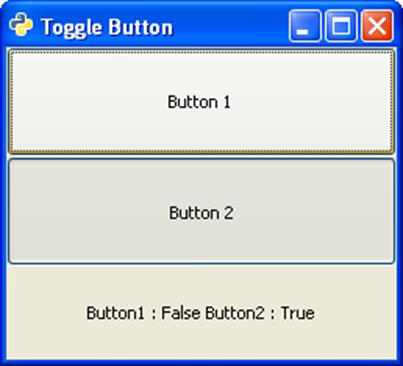
Two ToggleButtons and Label widgets are placed in a VBox container. The toggled signal emitted by Button1 is connected to a callback function on_toggled(). In this function, the state of Button2 is set to True if that of Button1 is False and vice versa.
The gtk.ToggleButton class has the following constructor −
gtk.ToggleButton(label = None, use_underline = True)Here, label is the test to be displayed on button. The use_underline property , if True, an underscore in the text indicates the next character should be underlined and used for the mnemonic accelerator.
Some of the important methods of the gtk.ToggleButton class are given in the following table −
| set_active() | This sets the active property to the value to True (active or pressed or on) or False (inactive or normal or off) |
| get_active() | This retrieves the state of button |
| toggled() | This emits the "toggled" signal on the togglebutton. |
| Toggled | This is emitted when the togglebutton state changes either programmatically or by the user action. |
Two ToggleButtons and Label widgets are placed in a VBox container. The toggled signal emitted by Button1 is connected to a callback function on_toggled(). In this function, the state of Button2 is set to True if that of Button1 is False and vice versa.
if self.btn1.get_active() == True:
   self.btn2.set_active(False)
else:
   self.btn2.set_active(True)
It displays the instantaneous states of buttons on the Label.
Example
Observe the following code −import gtk class PyApp(gtk.Window): def __init__(self): super(PyApp, self).__init__() self.set_title("Toggle Button") self.set_default_size(250, 200) self.set_position(gtk.WIN_POS_CENTER) vbox = gtk.VBox() self.btn1 = gtk.ToggleButton("Button 1") self.btn1.connect("toggled", self.on_toggled) self.btn2 = gtk.ToggleButton("Button 2") self.lbl = gtk.Label() vbox.add(self.btn1) vbox.add(self.btn2) vbox.add(self.lbl) self.add(vbox) self.connect("destroy", gtk.main_quit) self.show_all() def on_toggled(self, widget, data = None): if self.btn1.get_active() == True: self.btn2.set_active(False) else: self.btn2.set_active(True) state = "Button1 : "+str(self.btn1.get_active())+" Button2 : "+str(self.btn2.get_active()) self.lbl.set_text(state) if __name__ == '__main__': PyApp() gtk.main()The above code generates the following output −


No comments:
Post a Comment