
Unlike a console mode application, which is executed in a sequential
manner, a GUI based application is event driven. Functions or methods
are executed in response to user’s actions like clicking on a button,
selecting an item from a collection or a mouse click etc., called events.
Widgets used to build the GUI interface act as the source of such events. Each PyQt widget, which is derived from QObject class, is designed to emit ‘signal’ in response to one or more events. The signal on its own does not perform any action. Instead, it is ‘connected’ to a ‘slot’. The slot can be any callable Python function.
In PyQt, connection between a signal and a slot can be achieved in different ways. Following are most commonly used techniques −
When b1 is clicked, the clicked() signal is connected to b1_clicked() function
Widgets used to build the GUI interface act as the source of such events. Each PyQt widget, which is derived from QObject class, is designed to emit ‘signal’ in response to one or more events. The signal on its own does not perform any action. Instead, it is ‘connected’ to a ‘slot’. The slot can be any callable Python function.
In PyQt, connection between a signal and a slot can be achieved in different ways. Following are most commonly used techniques −
QtCore.QObject.connect(widget, QtCore.SIGNAL(‘signalname’), slot_function)A more convenient way to call a slot_function, when a signal is emitted by a widget is as follows −
widget.signal.connect(slot_function)Suppose if a function is to be called when a button is clicked. Here, the clicked signal is to be connected to a callable function. It can be achieved in any of the following two techniques −
QtCore.QObject.connect(button, QtCore.SIGNAL(“clicked()”), slot_function)or
button.clicked.connect(slot_function)
Example
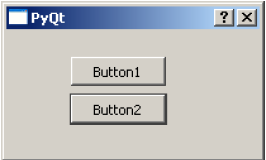
In the following example, two QPushButton objects (b1 and b2) are added in QDialog window. We want to call functions b1_clicked() and b2_clicked() on clicking b1 and b2 respectively.When b1 is clicked, the clicked() signal is connected to b1_clicked() function
b1.clicked.connect(b1_clicked())When b2 is clicked, the clicked() signal is connected to b2_clicked() function
QObject.connect(b2, SIGNAL("clicked()"), b2_clicked)
Example
import sys
from PyQt4.QtCore import *
from PyQt4.QtGui import *

def window():
   app = QApplication(sys.argv)
   win = QDialog()
   b1 = QPushButton(win)
   b1.setText("Button1")
   b1.move(50,20)
   b1.clicked.connect(b1_clicked)

   b2 = QPushButton(win)
   b2.setText("Button2")
   b2.move(50,50)
   QObject.connect(b2,SIGNAL("clicked()"),b2_clicked)

   win.setGeometry(100,100,200,100)
   win.setWindowTitle("PyQt")
   win.show()
   sys.exit(app.exec_())

def b1_clicked():
   print "Button 1 clicked"

def b2_clicked():
   print "Button 2 clicked"

if __name__ == '__main__':
   window()
The above code produces the following output −
Output
Button 1 clicked
Button 2 clicked


aws training in bangalore
ReplyDeleteartificial intelligence training in bangalore
machine learning training in bangalore
blockchain training in bangalore
iot training in bangalore
python training in bangalore | python online training
ReplyDeleteaws training in Bangalore | aws online training
artificial intelligence training in bangalore
| artificial intelligence online training
machine learning training in bangalore | machine learning online training
data science training in bangalore | data science online training