
QMessageBox is a commonly used modal dialog to display some
informational message and optionally ask the user to respond by clicking
any one of the standard buttons on it. Each standard button has a
predefined caption, a role and returns a predefined hexadecimal number.
Important methods and enumerations associated with QMessageBox class are given in the following table −
Important methods and enumerations associated with QMessageBox class are given in the following table −
| S.No. | Methods & Description |
|---|---|
| 1 |
setIcon() Displays predefined icon corresponding to severity of the message  Question Question Information Information Warning Warning Critical Critical |
| 2 |
setText() Sets the text of the main message to be displayed |
| 3 |
setInformativeText() Displays additional information |
| 4 |
setDetailText() Dialog shows a Details button. This text appears on clicking it |
| 5 |
setTitle() Displays the custom title of dialog |
| 6 |
setStandardButtons() List of standard buttons to be displayed. Each button is associated with QMessageBox.Ok 0x00000400 QMessageBox.Open 0x00002000 QMessageBox.Save 0x00000800 QMessageBox.Cancel 0x00400000 QMessageBox.Close 0x00200000 QMessageBox.Yes 0x00004000 QMessageBox.No 0x00010000 QMessageBox.Abort 0x00040000 QMessageBox.Retry 0x00080000 QMessageBox.Ignore 0x00100000 |
| 7 |
setDefaultButton() Sets the button as default. It emits the clicked signal if Enter is pressed |
| 8 |
setEscapeButton() Sets the button to be treated as clicked if the escape key is pressed |
Example
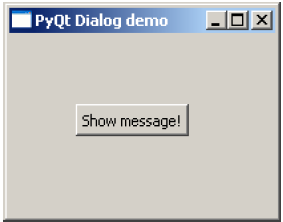
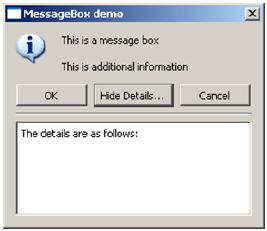
In the following example, click signal of the button on the top level window, the connected function displays the messagebox dialog.msg = QMessageBox()
msg.setIcon(QMessageBox.Information)
msg.setText("This is a message box")
msg.setInformativeText("This is additional information")
msg.setWindowTitle("MessageBox demo")
msg.setDetailedText("The details are as follows:")
setStandardButton() function displays desired buttons.msg.setStandardButtons(QMessageBox.Ok | QMessageBox.Cancel)buttonClicked() signal is connected to a slot function, which identifies the caption of source of the signal.
msg.buttonClicked.connect(msgbtn)The complete code for the example is as follows −
import sys
from PyQt4.QtGui import *
from PyQt4.QtCore import *

def window():
   app = QApplication(sys.argv)
   w = QWidget()
   b = QPushButton(w)
   b.setText("Show message!")

   b.move(50,50)
   b.clicked.connect(showdialog)
   w.setWindowTitle("PyQt Dialog demo")
   w.show()
   sys.exit(app.exec_())

def showdialog():
   msg = QMessageBox()
   msg.setIcon(QMessageBox.Information)

   msg.setText("This is a message box")
   msg.setInformativeText("This is additional information")
   msg.setWindowTitle("MessageBox demo")
   msg.setDetailedText("The details are as follows:")
   msg.setStandardButtons(QMessageBox.Ok | QMessageBox.Cancel)
   msg.buttonClicked.connect(msgbtn)

   retval = msg.exec_()
   print "value of pressed message box button:", retval

def msgbtn(i):
   print "Button pressed is:",i.text()

if __name__ == '__main__':
   window()
The above code produces the following output −


No comments:
Post a Comment