
A CheckButton widget is nothing but a ToggleButton styled as a
checkbox and a label. It inherits all properties and methods from the
ToggleButton class. Unlike ToggleButton where the caption is on the
button's face, a CheckButton displays a small square which is checkable
and has a label to its right.
Constructor, methods, and signals associated with gtk.CheckButton are exactly the same as gtk.ToggleButton.
Observe the code −
Constructor, methods, and signals associated with gtk.CheckButton are exactly the same as gtk.ToggleButton.
Example
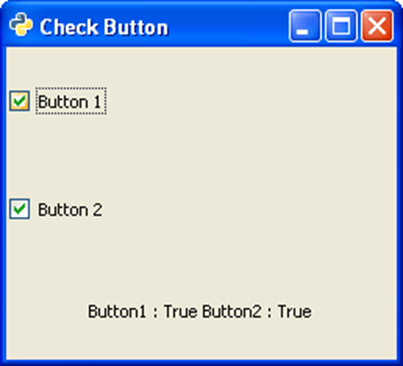
The following example demonstrates the use of CheckButton widget. Two CheckButtons and a Label are placed in a VBox. The toggled signal of the first CheckButton is connected to the on_checked() method which sets the state of the second button to True if that of the first is false and vice versa.Observe the code −
import gtk
class PyApp(gtk.Window):

   def __init__(self):
      super(PyApp, self).__init__()
      self.set_title("Check Button")
      self.set_default_size(250, 200)
      self.set_position(gtk.WIN_POS_CENTER)

      vbox = gtk.VBox()
      self.btn1 = gtk.CheckButton("Button 1")
      self.btn1.connect("toggled", self.on_checked)
      self.btn2 = gtk.CheckButton("Button 2")
      self.btn2.connect("toggled", self.on_checked)
      self.lbl = gtk.Label()

      vbox.add(self.btn1)
      vbox.add(self.btn2)
      vbox.add(self.lbl)

      self.add(vbox)
      self.connect("destroy", gtk.main_quit)
      self.show_all()

   def on_checked(self, widget, data = None):
      state = "Button1 : "+str(self.btn1.get_active())+"
         Button2 : "+str(self.btn2.get_active())
      self.lbl.set_text(state)
      if __name__ == '__main__':
PyApp()
gtk.main()
The above code will generate the following output −


No comments:
Post a Comment