
Unlike a console mode application, which is executed in a sequential manner, a GUI-based application is event driven. The gtk.main() function starts an infinite loop. Events occurring on the GUI are transferred to appropriate callback functions.
Each PyGTK widget, which is derived from the GObject class, is designed to emit ‘signal’ in response to one or more events. The signal on its own does not perform any action. Instead, it is ‘connected’ to a callback function.
Some signals are inherited by the widget, whereas some signals are widget specific. For example, "toggled" signal is emitted by the toggleButton widget.
A signal handler is set up by invoking the connect() method of the gtk.widget class.
 When the button is pressed, the following output is displayed on the console −
Each PyGTK widget, which is derived from the GObject class, is designed to emit ‘signal’ in response to one or more events. The signal on its own does not perform any action. Instead, it is ‘connected’ to a callback function.
Some signals are inherited by the widget, whereas some signals are widget specific. For example, "toggled" signal is emitted by the toggleButton widget.
A signal handler is set up by invoking the connect() method of the gtk.widget class.
handler_id = object.connect(name, func, func_data)
- The first argument, name, is a string containing the name of the signal you wish to catch.
- The second argument, func, is the call back function you wish to be called when it is caught.
- The third argument, func_data, the data you wish to pass to this function.
- The handler id, which is used to uniquely identify the callback method.
btn.connect("clicked",onClicked,None)
The onClicked() function is defined as −def onClicked(widget, data=None):If the callback method is an object method, it receives self as an additional argument −
def onClicked(self, widget, data=None):
Example
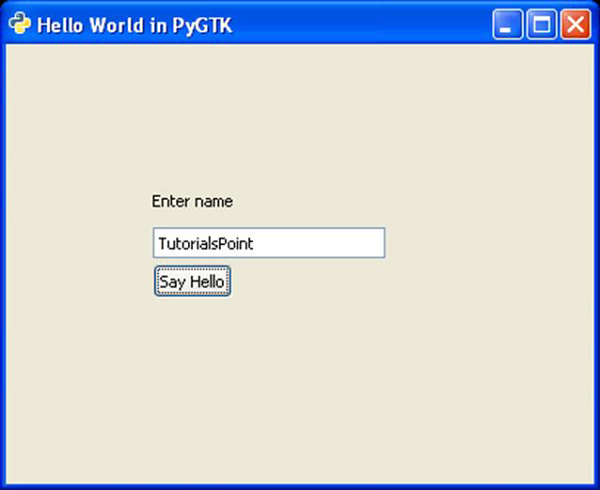
In the following example, a Button is added to gtk.Window. “Hello World” message is printed when the button is clicked.import gtk class PyApp(gtk.Window): def __init__(self): super(PyApp, self).__init__() self.set_title("Hello World in PyGTK") self.set_default_size(400,300) self.set_position(gtk.WIN_POS_CENTER) self.label = gtk.Label("Enter name") self.entry = gtk.Entry() self.btn = gtk.Button("Say Hello") self.btn.connect("clicked",self.hello) fixed = gtk.Fixed() fixed.put(self.label, 100,100) fixed.put(self.entry, 100,125) fixed.put(self.btn,100,150) self.add(fixed) self.show_all() def hello(self,widget): print "hello",self.entry.get_text() PyApp() gtk.main()Run the above code from Python prompt. The following output will be displayed −
When the button is pressed, the following output is displayed on the console −Hello TutorialsPoint


No comments:
Post a Comment