
A Dialog widget is normally used as a pop-up window on top of a
parent window. The objective of a Dialog is to collect some data from
the user and send it to the parent window. Dialog can be modal (where it
blocks the parent frame) or modeless (dialog frame can be bypassed).
The Dialog widget of PyGTK library is a window split vertically. In its top section, there is a gtk.VBox in which Label or Entry Widgets are packed. The bottom section is called action_area in which one or more buttons are placed. Two areas are separated by gtk.HSeparator.
gtk.Dialog class has the following constructor −
The response ID can be any number or one of the predefined Response ID constants −
Two buttons in action_area of Dialog widget use Stock IDs
gtk.STOCK.CANCEL and gtk.STOCK_OK. They are associated with response IDs
gtk. RESPONSE_REJECT and gtk. RESPONSE_ACCEPT respectively. The Dialog
is closed when any button is pressed. The run() methods returns
corresponding response ID which may be utilized for further processing.
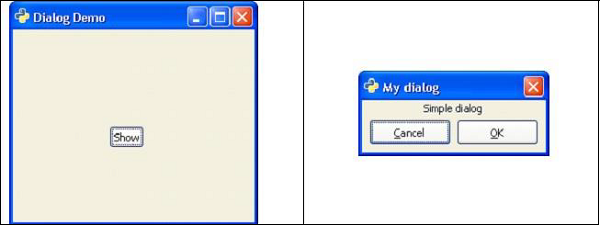
Following code displays a top level gtk.Window with a Button in it. When button is clicked, a Dialog appears with a label and two buttons.
The Dialog widget of PyGTK library is a window split vertically. In its top section, there is a gtk.VBox in which Label or Entry Widgets are packed. The bottom section is called action_area in which one or more buttons are placed. Two areas are separated by gtk.HSeparator.
gtk.Dialog class has the following constructor −
dlg = gtk.Dialog (Title = None, parent = None, flags = 0, buttons = None)Where,
- Title − Is the text appearing in the Title bar of the Dialog widget.
- Parent − Is the reference to the toplevel window from which the dialog pops up.
- Flag − Defines constants controlling operation of Dialog. The defined constants are −
| gtk.DIALOG_MODAL | If set, the dialog grabs all the keyboard events |
| gtk.DIALOG_DESTROY_WITH_PARENT | If set, the dialog is destroyed when its parent is. |
| gtk.DIALOG_NO_SEPARATOR | If set, there is no separator bar above the buttons. |
What is a Button?
A Button is a tuple object containing pairs of gtk.Button with a stock ID (or text) and its response IDs.The response ID can be any number or one of the predefined Response ID constants −
- gtk.RESPONSE_NONE
- gtk.RESPONSE_REJECT
- gtk.RESPONSE_ACCEPT
- gtk.RESPONSE_DELETE_EVENT
- gtk.RESPONSE_OK
- gtk.RESPONSE_CANCEL
- gtk.RESPONSE_CLOSE
- gtk.RESPONSE_YES
- gtk.RESPONSE_NO
- gtk.RESPONSE_APPLY
- gtk.RESPONSE_HELP
- add_button() − Adds a button with the text specified by button_text (or a stock button, if button_text is a stock ID) in action_area.
- response() − Emits the "response" signal with the value specified in response_id
- run() − Displays the dialog and returns the response_id when delete_event gets emitted.
- set_default_response() − Sets the last widget in the dialog's action area with the specified response_id as the default widget for the dialog.
| Close | This is emitted when the dialog is closed. |
| Response | This is emitted when an action_area widget is activated (button "clicked"), the dialog receives a delete_event or the application calls the response() method. |
Following code displays a top level gtk.Window with a Button in it. When button is clicked, a Dialog appears with a label and two buttons.
Example
Observe the following code −import gtk class PyApp(gtk.Window): def __init__(self): super(PyApp, self).__init__() self.set_title("Dialog Demo") self.set_default_size(250, 200) fixed = gtk.Fixed() btn = gtk.Button("Show") btn.connect("clicked",self.show_sialog) fixed.put(btn,100,100) self.add(fixed) self.connect("destroy", gtk.main_quit) self.show_all() def show_sialog(self, widget, data=None): dialog = gtk.Dialog("My dialog", self, gtk.DIALOG_MODAL | gtk.DIALOG_DESTROY_WITH_PARENT, (gtk.STOCK_CANCEL, gtk.RESPONSE_REJECT, gtk.STOCK_OK, gtk.RESPONSE_ACCEPT)) label = gtk.Label("Simple dialog") dialog.vbox.add(label) label.show() res = dialog.run() print res dialog.destroy() if __name__ == '__main__': PyApp() gtk.main()The above code produces the following output −
Preconfigured Dialog Widgets
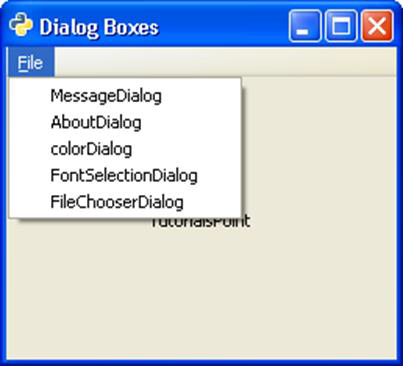
PyGTK API has a number of preconfigured Dialog widgets −- MessageDialog
- AboutDialog
- ColorSelectionDialog
- FontSelectionDialog
- FileChooserDialog
Example
Observe the following code −import gtk, pango class PyApp(gtk.Window): def __init__(self): super(PyApp, self).__init__() self.set_title("Dialog Boxes") self.set_default_size(250, 200) self.set_position(gtk.WIN_POS_CENTER) mb = gtk.MenuBar() menu1 = gtk.Menu() file = gtk.MenuItem("_File") file.set_submenu(menu1) msg = gtk.MenuItem("MessageDialog") menu1.append(msg) abt = gtk.MenuItem("AboutDialog") menu1.append(abt) colo = gtk.MenuItem("colorDialog") menu1.append(colo) font = gtk.MenuItem("FontSelectionDialog") menu1.append(font) fl = gtk.MenuItem("FileChooserDialog") menu1.append(fl) mb.append(file) vbox = gtk.VBox(False, 2) vbox.pack_start(mb, False, False, 0) self.add(vbox) self.text = gtk.Label("TutorialsPoint") vbox.pack_start(self.text, True, True, 0) msg.connect("activate",self.on_msgdlg) abt.connect("activate",self.on_abtdlg) font.connect("activate",self.on_fntdlg) colo.connect("activate",self.on_color) fl.connect("activate", self.on_file) self.connect("destroy", gtk.main_quit) self.show_all() def on_msgdlg(self, widget): #MessageDialog usage code def on_abtdlg(self, widget): #AboutDialog usage code def on_fntdlg(self,widget): #FontSelectionDialog usage code def on_color(self, widget): #ColorChooserDialog usage cde Def on_file(self, widget): #FileChooserDialog usage code if __name__ == '__main__': PyApp() gtk.main()The above code will generate the following output −


No comments:
Post a Comment