
Some widgets in PyGTK tool kit do not have their own window. Such
windowless widgets cannot receive event signals. Such widgets, for
example a label, if put inside an eventbox can receive signals.
EventBox is an invisible container that provides window to windowless widgets. It has a simple constructor without any argument −
Observe the code −
 When Label 1 is clicked on the console, the message "clicked label 1"
gets printed. Similarly, when Label 2 is clicked on, "clicked label 2"
message is printed.
When Label 1 is clicked on the console, the message "clicked label 1"
gets printed. Similarly, when Label 2 is clicked on, "clicked label 2"
message is printed.
EventBox is an invisible container that provides window to windowless widgets. It has a simple constructor without any argument −
gtk.EventBox()
Example
In the following example, two widgets of the gtk.EventBox are placed in the toplevel window. Inside each eventbox, a label is added. The eventbox is now connected to a callback function to process the button_press_event on it. As the eventbox itself is invisible, effectively the event occurs on the embedded label. Hence, as and when we click on any label, the corresponding callback function is invoked.Observe the code −
import gtk
class PyApp(gtk.Window):
   def __init__(self):
      super(PyApp, self).__init__()
      self.set_title("EventBox demo")
      self.set_size_request(200,100)
      self.set_position(gtk.WIN_POS_CENTER)
      fixed = gtk.Fixed()

      event1 = gtk.EventBox()
      label1 = gtk.Label("Label 1")
      event1.add(label1)
      fixed.put(event1, 80,20)

      event1.connect("button_press_event",self.hello1)
      event2 = gtk.EventBox()
      label2 = gtk.Label("Label 2")
      event2.add(label2)
      event2.connect("button_press_event",self.hello2)
      fixed.put(event2, 80,70)

      self.add(fixed)
      self.connect("destroy", gtk.main_quit)
      self.show_all()

   def hello1(self, widget, event):
      print "clicked label 1"

   def hello2(self, widget, event):
      print "clicked label 2"
PyApp()
gtk.main()
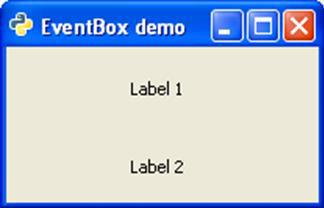
The above code generates the following output −
When Label 1 is clicked on the console, the message "clicked label 1"
gets printed. Similarly, when Label 2 is clicked on, "clicked label 2"
message is printed.

No comments:
Post a Comment