
ComboBox is a powerful and popular widget in any GUI toolkit. It
provides a dropdown list of items from which a user can choose. The
gtk.ComboBox widget implements the CellLayout interface and provides a
number of methods to manage the display of items.
The object of gtk.ComboBox class is associated with a ListSore, which is a list model that can be used with widgets that display collection of items. Items are added to ListStore with the append() method. Further, a CellRendererText object is created and packed into the combobox.
Follow these steps to set up a combobox.
gtk.ComboBox class has the following methods −
The ComboBox widget emits the following signals −
Two example codes for the demonstration of ComboBox are given below.
The object of gtk.ComboBox class is associated with a ListSore, which is a list model that can be used with widgets that display collection of items. Items are added to ListStore with the append() method. Further, a CellRendererText object is created and packed into the combobox.
Follow these steps to set up a combobox.
combobox = gtk.ComboBox()
store = gtk.ListStore(gobject.TYPE_STRING)
cell = gtk.CellRendererText()
combobox.pack_start(cell)
combobox.add_attribute(cell, 'text', 0)
PyGTK offers a convenience method — gtk.combo_box_new_text() to create a combo box instead of using a list store. Associated convenience methods append_text(), prepend_text(), insert_text() and remove_text() are used to manage the combo boxcontents.
gtk.ComboBox class has the following methods −
| S.NO | Methods and Description |
|---|---|
| 1 | set_wrap_width() Sets the number of columns to be displayed in the popup table layout |
| 2 | get_active() Returns the value of the "active" property which is the index in the model of the currently active item |
| 3 | set_active() Sets the active item of the combo_box to the item with the model index specified |
| 4 | set_model() Sets the model used by the combo box |
| 5 | append_text() Appends the string specified by text to the list of strings stored in the combo box list store |
| 6 | Insert_text() Inserts the string specified by text in the combo box gtk.ListStore at the index specified by position |
| 7 | prepend_text() Prepends the string specified by text to the list of strings stored in the list store |
| 8 | remove_text() Removes the string at the index specified by position in the associated liststore |
| 9 | get_active_text() Returns the currently active string |
| changed | This is emitted when a new item in the combo box is selected |
| move_active | This is a keybinding signal which gets emitted to move the active selection. |
| Popdown | This is a keybinding signal which gets emitted to popdown the combo box list. The default bindings for this signal are Alt+Up and Escape |
| Popup | This is a keybinding signal which gets emitted to popup the combo box list. The default bindings for this signal are Alt+Down. |
Example 1
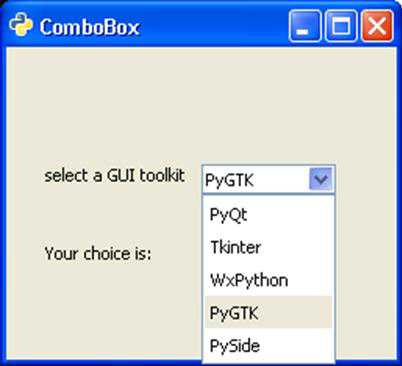
In this example, a ListStore is populated with the names of popular Python GUI toolkits and it is associated with a ComboBox widget. As a user makes a choice, the changed signal is emitted. It is connected to a callback function to display the user's choice.import pygtk pygtk.require('2.0') import gtk class PyApp(gtk.Window): def __init__(self): super(PyApp, self).__init__() self.set_title("ComboBox with ListStore") self.set_default_size(250, 200) self.set_position(gtk.WIN_POS_CENTER) combobox = gtk.ComboBox() store = gtk.ListStore(str) cell = gtk.CellRendererText() combobox.pack_start(cell) combobox.add_attribute(cell, 'text', 0) fixed = gtk.Fixed() lbl = gtk.Label("select a GUI toolkit") fixed.put(lbl, 25,75) fixed.put(combobox, 125,75) lbl2 = gtk.Label("Your choice is:") fixed.put(lbl2, 25,125) self.label = gtk.Label("") fixed.put(self.label, 125,125) self.add(fixed) store.append (["PyQt"]) store.append (["Tkinter"]) store.append (["WxPython"]) store.append (["PyGTK"]) store.append (["PySide"]) combobox.set_model(store) combobox.connect('changed', self.on_changed) combobox.set_active(0) self.connect("destroy", gtk.main_quit) self.show_all() return def on_changed(self, widget): self.label.set_label(widget.get_active_text()) return if __name__ == '__main__': PyApp() gtk.main()Upon execution, the program displays the following output −
Example 2
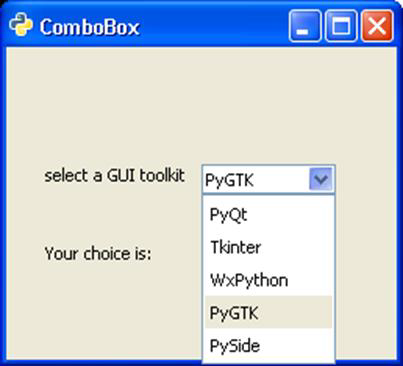
The second version of the program uses the convenience method combo_box_new_text() to create a combo box and append_text() function to add strings in it. In both programs, the get_active_text() method is used to fetch user's selection and display on a label on the window.import gtk class PyApp(gtk.Window): def __init__(self): super(PyApp, self).__init__() self.set_title("Simple ComboBox") self.set_default_size(250, 200) self.set_position(gtk.WIN_POS_CENTER) cb = gtk.combo_box_new_text() cb.connect("changed", self.on_changed) cb.append_text('PyQt') cb.append_text('Tkinter') cb.append_text('WxPython') cb.append_text('PyGTK') cb.append_text('PySide') fixed = gtk.Fixed() lbl = gtk.Label("select a GUI toolkit") fixed.put(lbl, 25,75) fixed.put(cb, 125,75) lbl2 = gtk.Label("Your choice is:") fixed.put(lbl2, 25,125) self.label = gtk.Label("") fixed.put(self.label, 125,125) self.add(fixed) self.connect("destroy", gtk.main_quit) self.show_all() def on_changed(self, widget): self.label.set_label(widget.get_active_text()) if __name__ == '__main__': PyApp() gtk.main()The output of this program is similar to that of the previous program.


No comments:
Post a Comment