
A single RadioButton widget offers functionality similar to
CheckButton. However, when more than one radio button is present in the
same container, then a mutually exclusive choice is available for the
user to choose from one of the available options. If every radio button
in the container belongs to the same group, then as one is selected,
others are automatically deselected.
The following is a constructor of the gtk.RadioButton class −
As in case of ToggleButton and CheckButton, the RadioButton also emits the toggled signal. In the example given below, three objects of the gtk.RadioButton widget are placed in a VBox. All of them are connected to a callback function on_selected(), to process the toggled signal.
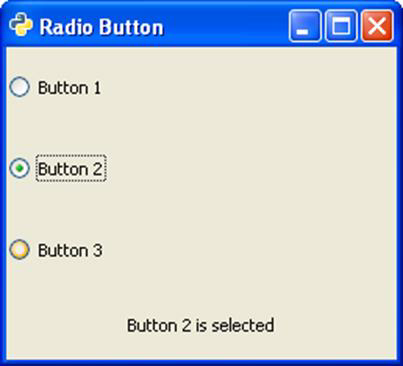
The callback function identifies the label of source RadioButton widget and displays it on the label put in the VBox.
The following is a constructor of the gtk.RadioButton class −
gtk.RadioButton(group = None, Label = None, unerline = None)In order to create a button group, provide group=None for the first Radio button, and for the subsequent options, provide the object of the first button as group.
As in case of ToggleButton and CheckButton, the RadioButton also emits the toggled signal. In the example given below, three objects of the gtk.RadioButton widget are placed in a VBox. All of them are connected to a callback function on_selected(), to process the toggled signal.
The callback function identifies the label of source RadioButton widget and displays it on the label put in the VBox.
Example
Observe the following code −import gtk class PyApp(gtk.Window): def __init__(self): super(PyApp, self).__init__() self.set_title("Radio Button") self.set_default_size(250, 200) self.set_position(gtk.WIN_POS_CENTER) vbox = gtk.VBox() btn1 = gtk.RadioButton(None, "Button 1") btn1.connect("toggled", self.on_selected) btn2 = gtk.RadioButton(btn1,"Button 2") btn2.connect("toggled", self.on_selected) btn3 = gtk.RadioButton(btn1,"Button 3") btn3.connect("toggled", self.on_selected) self.lbl = gtk.Label() vbox.add(btn1) vbox.add(btn2) vbox.add(btn3) vbox.add(self.lbl) self.add(vbox) self.connect("destroy", gtk.main_quit) self.show_all() def on_selected(self, widget, data=None): self.lbl.set_text(widget.get_label()+" is selected") if __name__ == '__main__': PyApp() gtk.main()The above code will generate the following output −


No comments:
Post a Comment