
GWT applications are normally single page application running
JavaScripts and do not contains lot of pages thus browser do not keep
track of user interaction with Application.
To use browser's history functionality, application should generate a
unique URL fragment for each navigable page.
GWT provides History Mechanism to handle this situation.
GWT uses a term token which is simply a string that the application can parse to return to a particular state. Application will save this token in browser's history as URL fragment.
For example, a history token named "pageIndex1" would be added to a URL as follows:
Following is the content of the modified module descriptor src/com.tutorialspoint/HelloWorld.gwt.xml.
GWT provides History Mechanism to handle this situation.
GWT uses a term token which is simply a string that the application can parse to return to a particular state. Application will save this token in browser's history as URL fragment.
For example, a history token named "pageIndex1" would be added to a URL as follows:
http://www.tutorialspoint.com/HelloWorld.html#pageIndex0
History Management Workflow
Step 1: Enable History support
In order to use GWT History support, we must first embed following iframe into our host HTML page.<iframe src="javascript:''" id="__gwt_historyFrame" style="width:0;height:0;border:0"></iframe>
Step 2: Add token to History
Following example stats how to add token to browser historyint index = 0; History.newItem("pageIndex" + index);
Step 3: Retrive token from History
When user uses back/forward button of browser, we'll retrive the token and update our application state accordingly.History.addValueChangeHandler(new ValueChangeHandler<String>() { @Override public void onValueChange(ValueChangeEvent<String> event) { String historyToken = event.getValue(); /* parse the history token */ try { if (historyToken.substring(0, 9).equals("pageIndex")) { String tabIndexToken = historyToken.substring(9, 10); int tabIndex = Integer.parseInt(tabIndexToken); /* select the specified tab panel */ tabPanel.selectTab(tabIndex); } else { tabPanel.selectTab(0); } } catch (IndexOutOfBoundsException e) { tabPanel.selectTab(0); } } });Now let's see the History Class in Action.
History Class - Complete Example
This example will take you through simple steps to demonstrate History Management of a GWT application. Follow the following steps to update the GWT application we created in GWT - Create Application chapter:| Step | Description |
|---|---|
| 1 | Create a project with a name HelloWorld under a package com.tutorialspoint as explained in the GWT - Create Application chapter. |
| 2 | Modify HelloWorld.gwt.xml, HelloWorld.css, HelloWorld.html and HelloWorld.java as explained below. Keep rest of the files unchanged. |
| 3 | Compile and run the application to verify the result of the implemented logic. |
<?xml version="1.0" encoding="UTF-8"?>
<module rename-to='helloworld'>
  <!-- Inherit the core Web Toolkit stuff.                        -->
  <inherits name='com.google.gwt.user.User'/>

  <!-- Inherit the default GWT style sheet.                       -->
  <inherits name='com.google.gwt.user.theme.clean.Clean'/>

  <!-- Specify the app entry point class.                         -->
  <entry-point class='com.tutorialspoint.client.HelloWorld'/>
  <!-- Specify the paths for translatable code                    -->
  <source path='client'/>
  <source path='shared'/>

</module>
Following is the content of the modified Style Sheet file war/HelloWorld.css.
body{
   text-align: center;
   font-family: verdana, sans-serif;
}
h1{
   font-size: 2em;
   font-weight: bold;
   color: #777777;
   margin: 40px 0px 70px;
   text-align: center;
}
Following is the content of the modified HTML host file war/HelloWorld.html
<html>
<head>
<title>Hello World</title>
   <link rel="stylesheet" href="HelloWorld.css"/>
   <script language="javascript" src="helloworld/helloworld.nocache.js">
   </script>
</head>
<body>

<iframe src="javascript:''"
   id="__gwt_historyFrame"
   style="width:0;height:0;border:0"></iframe>
<h1> History Class Demonstration</h1>
<div id="gwtContainer"></div>

</body>
</html>
Let us have following content of Java file src/com.tutorialspoint/HelloWorld.java using which we will demonstrate History Management in GWT Code.
package com.tutorialspoint.client;

import com.google.gwt.core.client.EntryPoint;
import com.google.gwt.event.logical.shared.SelectionEvent;
import com.google.gwt.event.logical.shared.SelectionHandler;
import com.google.gwt.event.logical.shared.ValueChangeEvent;
import com.google.gwt.event.logical.shared.ValueChangeHandler;
import com.google.gwt.user.client.History;
import com.google.gwt.user.client.ui.HTML;
import com.google.gwt.user.client.ui.RootPanel;
import com.google.gwt.user.client.ui.TabPanel;

public class HelloWorld implements EntryPoint {

   /**
   * This is the entry point method.
   */
   public void onModuleLoad() {
      /* create a tab panel to carry multiple pages */
      final TabPanel tabPanel = new TabPanel();

      /* create pages */
      HTML firstPage = new HTML("<h1>We are on first Page.</h1>");
      HTML secondPage = new HTML("<h1>We are on second Page.</h1>");
      HTML thirdPage = new HTML("<h1>We are on third Page.</h1>");

      String firstPageTitle = "First Page";
      String secondPageTitle = "Second Page";
      String thirdPageTitle = "Third Page";
      tabPanel.setWidth("400");

   /* add pages to tabPanel*/
      tabPanel.add(firstPage, firstPageTitle);
      tabPanel.add(secondPage,secondPageTitle);
      tabPanel.add(thirdPage, thirdPageTitle);

      /* add tab selection handler */
      tabPanel.addSelectionHandler(new SelectionHandler<Integer>() {
         @Override
         public void onSelection(SelectionEvent<Integer> event) {
            /* add a token to history containing pageIndex
             History class will change the URL of application
             by appending the token to it.
            */
            History.newItem("pageIndex" + event.getSelectedItem());
         }
      });

      /* add value change handler to History
       this method will be called, when browser's
       Back button or Forward button are clicked
       and URL of application changes.
       */
      History.addValueChangeHandler(new ValueChangeHandler<String>() {
         @Override
         public void onValueChange(ValueChangeEvent<String> event) {
            String historyToken = event.getValue();
            /* parse the history token */
            try {
               if (historyToken.substring(0, 9).equals("pageIndex")) {
                  String tabIndexToken = historyToken.substring(9, 10);
                  int tabIndex = Integer.parseInt(tabIndexToken);
                  /* select the specified tab panel */
                  tabPanel.selectTab(tabIndex);
               } else {
                  tabPanel.selectTab(0);
               }
            } catch (IndexOutOfBoundsException e) {
               tabPanel.selectTab(0);
            }
         }
      });

      /* select the first tab by default */
      tabPanel.selectTab(0);

      /* add controls to RootPanel */
      RootPanel.get().add(tabPanel);
   }
}
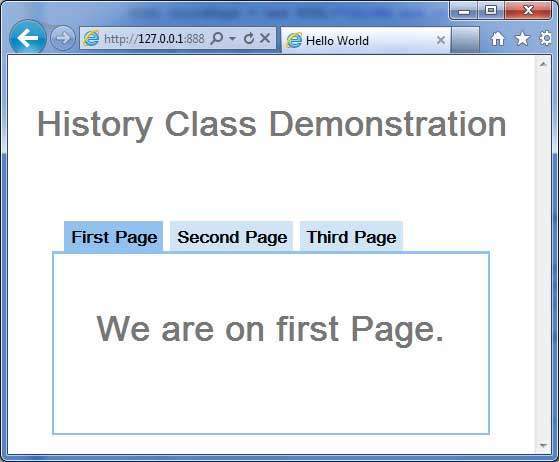
Once you are ready with all the changes done, let us compile and run the application in development mode as we did in GWT - Create Application chapter. If everything is fine with your application, this will produce following result:
- Now click on each tab to select different pages.
- You should notice, when each tab is selected ,application url is changed and #pageIndex is added to the url.
- You can also see that browser's back and forward buttons are enabled now.
- Use back and forward button of the browser and you will see the different tabs get selected accordingly.


No comments:
Post a Comment