
Toolbar class is inherited from the gtk.Container class. It holds and
manages a set of buttons and other widgets. One or more horizontal
strips of buttons are normally seen just below the menu bar in a top
level window. The Toolbar can also be put in a detachable window called
HandleBox. By default, the buttons in the gtk.Toolbar widget are laid
horizontally. Vertical toolbar can be set up by setting the orientation
property
to gtk.ORIENTATION_VERTICAL.
The toolbar can be configured to show buttons with icons, text, or both. The style enumerators are −
A Toolbar widget is set up using the following constructor −
The following examples show how to construct different ToolItems −
to gtk.ORIENTATION_VERTICAL.
The toolbar can be configured to show buttons with icons, text, or both. The style enumerators are −
| gtk.TOOLBAR_ICONS | These buttons display only icons in the toolbar. |
| gtk.TOOLBAR_TEXT | These buttons display only text labels in the toolbar. |
| gtk.TOOLBAR_BOTH | These buttons display text and icons in the toolbar. |
| gtk.TOOLBAR_BOTH_HORIZ | These buttons display icons and text alongside each other, rather than vertically stacked. |
bar = gtk.Toolbar()The constituents of Toolbar are instances of the gtk.ToolItem. The items can be ToolButton, RadioToolButton, ToggleToolButton, or SeparatorToolItem. In order to assign icon to the ToolItem object, images with predefined stock_ID can be used or a custom image can be assigned by the set_image() method.
The following examples show how to construct different ToolItems −
ToolButton
newbtn = gtk.ToolButton(gtk.STOCK_NEW)
RadioToolButton
rb1 = gtk.RadioToolButton(None,gtk.STOCK_JUSTIFY_LEFT)
rb2 = gtk.RadioToolButton(rb1,gtk.STOCK_JUSTIFY_RIGHT)
Note that multiple radio buttons are put in the same group.
SeparatorToolItem
sep = gtk.SeparatorToolItem()These items are put in the toolbar by calling its insert method.
gtk.Toolbar.insert(item, index)For example,
bar.insert(new,0)You can also assign a tooltip to the ToolButton using the set_tooltip_text() nethod. For example, New tooltip is assigned to the new ToolButton.
newbtn.set_tooltip_text("New")
Example
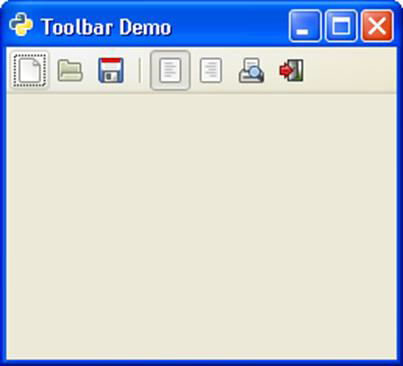
The following code shows a toplevel window with a tool bar set up to contain normal tool item, radio items and a separator item.import gtk class PyApp(gtk.Window): def __init__(self): super(PyApp, self).__init__() self.set_title("Toolbar Demo") self.set_default_size(250, 200) self.set_position(gtk.WIN_POS_CENTER) toolbar = gtk.Toolbar() toolbar.set_style(gtk.TOOLBAR_ICONS) toolbar.set_orientation(gtk.ORIENTATION_HORIZONTAL) newbtn = gtk.ToolButton(gtk.STOCK_NEW) newbtn.set_tooltip_text("New") openbtn = gtk.ToolButton(gtk.STOCK_OPEN) savebtn = gtk.ToolButton(gtk.STOCK_SAVE) sep = gtk.SeparatorToolItem() rb1 = gtk.RadioToolButton(None,gtk.STOCK_JUSTIFY_LEFT) 53 rb2 = gtk.RadioToolButton(rb1,gtk.STOCK_JUSTIFY_RIGHT) prv = gtk.ToggleToolButton(gtk.STOCK_PRINT_PREVIEW) quitbtn = gtk.ToolButton(gtk.STOCK_QUIT) toolbar.insert(newbtn, 0) toolbar.insert(openbtn, 1) toolbar.insert(savebtn, 2) toolbar.insert(sep, 3) toolbar.insert(rb1,4) toolbar.insert(rb2,5) toolbar.insert(prv,6) toolbar.insert(quitbtn, 7) quitbtn.connect("clicked", gtk.main_quit) vbox = gtk.VBox(False, 2) vbox.pack_start(toolbar, False, False, 0) self.add(vbox) self.connect("destroy", gtk.main_quit) self.show_all() def on_checked(self, widget, data = None): state = "Button1 : "+str(self.btn1.get_active())+" Button2 : "+str(self.btn2.get_active()) self.lbl.set_text(state) if __name__ == '__main__': PyApp() gtk.main()The above code will generate the following output −


No comments:
Post a Comment