
Flash Builder 4 excellent inbuilt support for FlexUnit integration in Flex development Cycle.
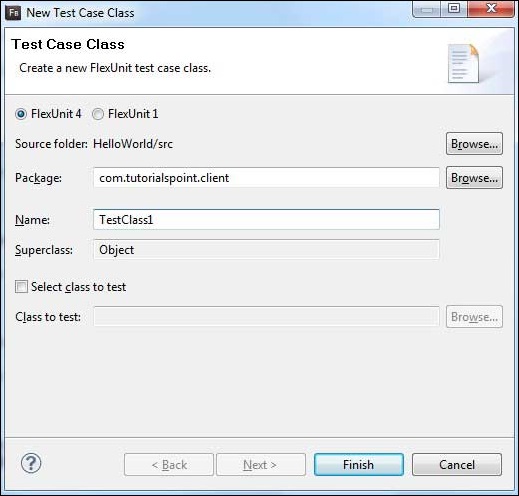
To create a test case class using Flash Builder, Click on File > New > Test Case Class. Enter the details as shown below.
 Flash Builder will create the following TestClass1.as file.
Following is the content of the modified as file src/com.tutorialspoint/client/TestClass1.as.
 Flash Builder also show test result in the browser.
Create a Test Case Class
You can create a Test Case Class using Flash Builder Create Test Class wizard. Running test cases is a breeze with Flash Builder as you will see in this article.To create a test case class using Flash Builder, Click on File > New > Test Case Class. Enter the details as shown below.
Flash Builder will create the following TestClass1.as file.package com.tutorialspoint.client { public class TestClass1 { [Before] public function setUp():void {} [After] public function tearDown():void {} [BeforeClass] public static function setUpBeforeClass():void {} [AfterClass] public static function tearDownAfterClass():void {} } }
FlexUnit Integration Example
Now Let us follow the following steps to test FlexUnit Integration in a Flex application:| Step | Description |
|---|---|
| 1 | Create a project with a name HelloWorld under a package com.tutorialspoint.client as explained in the Flex - Create Application chapter. |
| 2 | Modify HelloWorld.mxml as explained below. Keep rest of the files unchanged. |
| 3 | Create TestClass1.as test case as described above and Modify TestClass1.as as explained below. |
| 4 | Compile and run the application to make sure business logic is working as per the requirements. |
package com.tutorialspoint.client
{
   import org.flexunit.asserts.assertEquals;

   public class TestClass1
   {
      private var counter: int = 1;

      [Before]
      public function setUp():void
      {
         //this code will run before every test case execution
      }

      [After]
      public function tearDown():void
      {
         //this code will run after every test case execution
      }

      [BeforeClass]
      public static function setUpBeforeClass():void
      {
         //this code will run once when test cases start execution
      }

      [AfterClass]
      public static function tearDownAfterClass():void
      {
         //this code will run once when test cases ends execution
      }

      [Test]
      public function testCounter():void {
         assertEquals(counter, 1);
      }
   }
}
Following is the content of the modified mxml file src/com.tutorialspoint/HelloWorld.mxml.
<?xml version="1.0" encoding="utf-8"?>
<s:Application xmlns:fx="http://ns.adobe.com/mxml/2009"
   xmlns:s="library://ns.adobe.com/flex/spark"
   xmlns:mx="library://ns.adobe.com/flex/mx"
   minWidth="500" minHeight="500">
</s:Application>
Once you are ready with all the changes done, let us compile in normal mode as we did in Flex - Create Application chapter.
Running Test cases
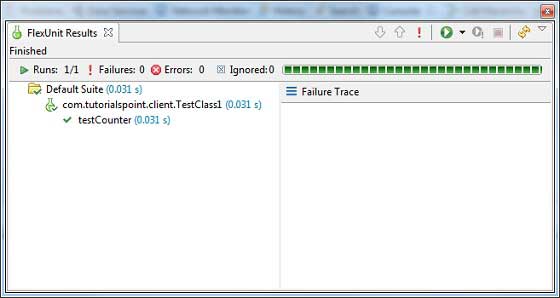
Now Right Click on TestClass1 in package explorer and select Run As > FlexUnit Tests. You'll see the following output in Flash Builder test window.
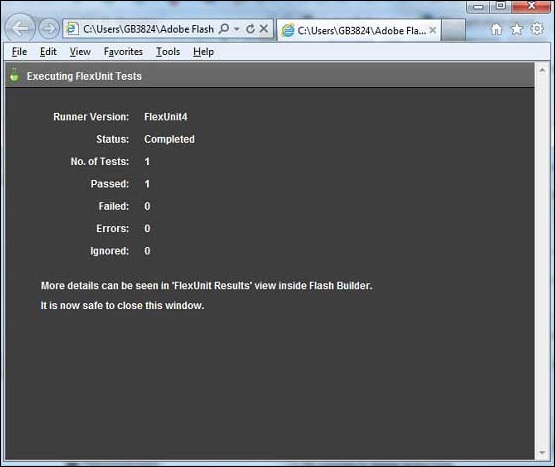
Flash Builder also show test result in the browser.

No comments:
Post a Comment