
This feature of cPanel allows us to protect certain directories with a
username and password. If a directory is protected by this, then if
somebody from the front end of your website tries to access the file,
they will be prompted to provide a username and password, if username of
password does not match, then the user will not be able to see the
content of that directory.
To configure a password for a directory, use the following steps −
Step 1 − Open Directory Privacy Configuration by clicking Directory Privacy in the Files Section.
 Step 2 − Navigate within your directories to find the
directory you want to protect. Use icon on the left hand side to open a
directory.
Step 2 − Navigate within your directories to find the
directory you want to protect. Use icon on the left hand side to open a
directory.
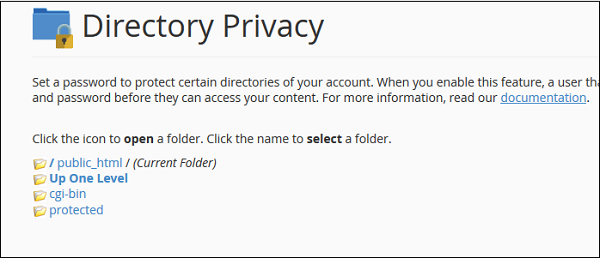 Step 3 − Select the directory you want to protect by clicking
on the name of the folder, you will get same configuration as shown
below.
Step 3 − Select the directory you want to protect by clicking
on the name of the folder, you will get same configuration as shown
below.
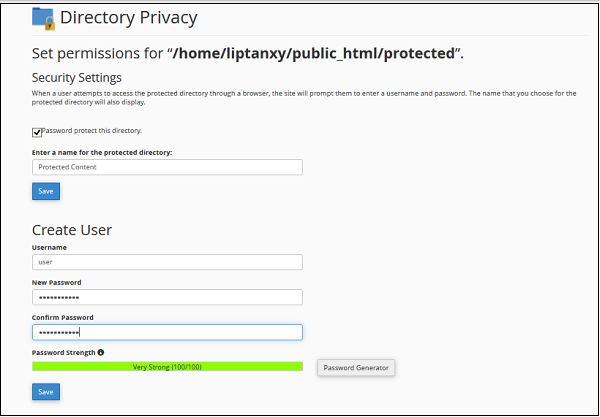 Step 4 − Select Password protect for this directory checkbox and enter a Label which you wish to display in the frontend, click Save to protect this directory.
Step 5 − To give access to users, you will need to create users. Enter username and password to create a new user, who will have access to this directory from the frontend.
Step 6 − Click Save to give access to this user. You can also create more than one user here.
If you now try to access your password protected directory, you will get a prompt like this −
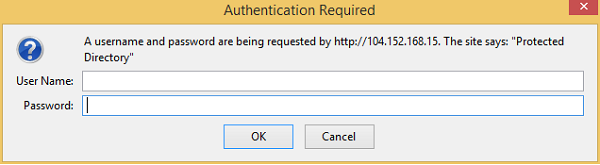 You can now enter the username and password to access this directory.
To configure a password for a directory, use the following steps −
Step 1 − Open Directory Privacy Configuration by clicking Directory Privacy in the Files Section.
Step 2 − Navigate within your directories to find the
directory you want to protect. Use icon on the left hand side to open a
directory.
Step 3 − Select the directory you want to protect by clicking
on the name of the folder, you will get same configuration as shown
below.
Step 4 − Select Password protect for this directory checkbox and enter a Label which you wish to display in the frontend, click Save to protect this directory.Step 5 − To give access to users, you will need to create users. Enter username and password to create a new user, who will have access to this directory from the frontend.
Step 6 − Click Save to give access to this user. You can also create more than one user here.
If you now try to access your password protected directory, you will get a prompt like this −
You can now enter the username and password to access this directory.

No comments:
Post a Comment