
In this chapter, we will discuss the setting up of the environment for ES6.
 To verify if the installation was successful, enter the command node –v in the terminal window.
 Install the package from the .dmg by following along the install wizard which will install both node and npm. npm is the Node Package Manager which facilitates installs of additional packages for Node.js.
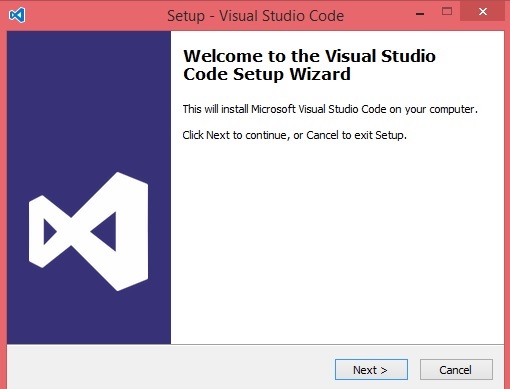
 Double-click on VSCodeSetup.exe
  to launch the setup process. This will only take a minute.
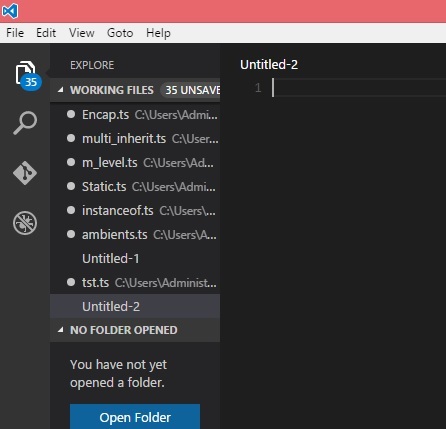
 Following is the screenshot of the IDE.
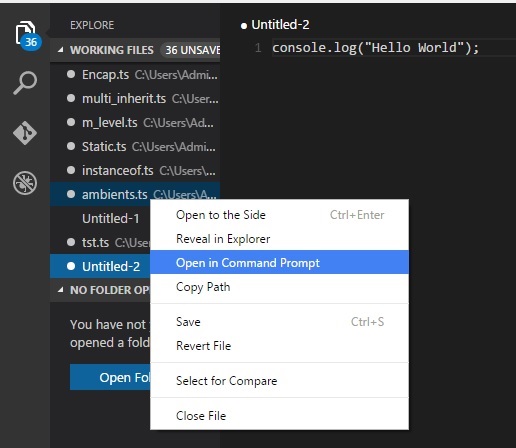
 You may directly traverse to the file’s path by a right-click on the file → open in command prompt. Similarly, the Reveal in Explorer option shows the file in the File Explorer.
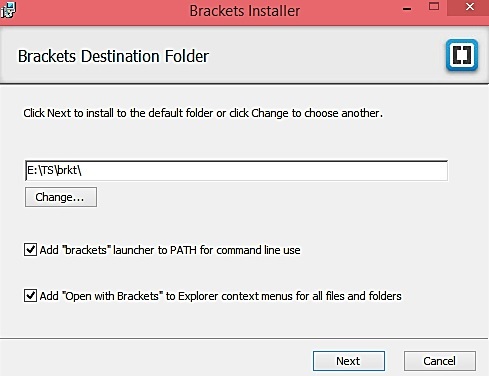 You can run DOS prompt/Shell within Brackets itself by adding one more extension Brackets Shell.
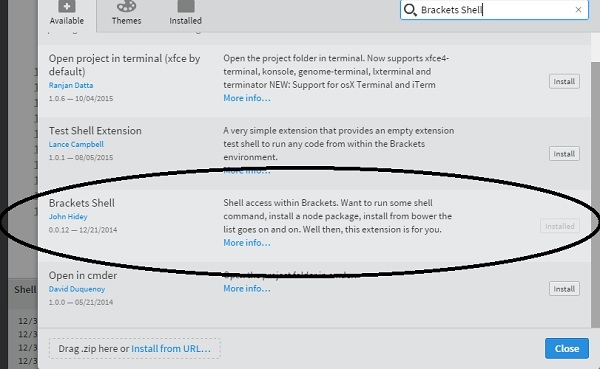 Upon installation, you will find an icon of shell on the right hand side of the editor
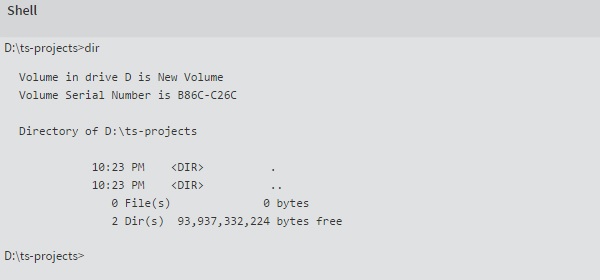
  . Once you click on the icon, you will see the shell window as shown in the following screenshot.
 You are all set!!!
Local Environment Setup
JavaScript can run on any browser, any host, and any OS. You will need the following to write and test a JavaScript program standard −Text Editor
The text editor helps you to write your source code. Examples of few editors include Windows Notepad, Notepad++, Emacs, vim or vi etc. Editors used may vary with the operating systems. The source files are typically named with the extension .jsInstalling Node.js
Node.js is an open source, cross-platform runtime environment for server-side JavaScript. Node.js is required to run JavaScript without a browser support. It uses Google V8 JavaScript engine to execute the code. You may download Node.js source code or a pre-built installer for your platform. Node is available at https://nodejs.org/en/downloadInstallation on Windows
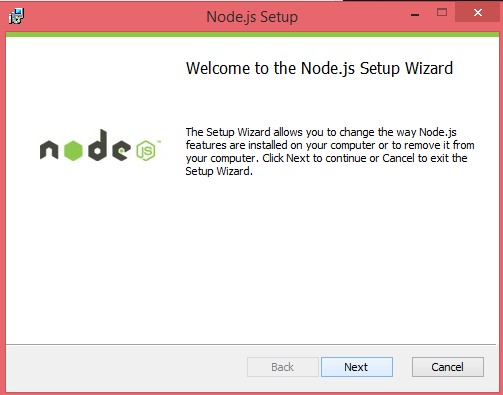
Download and run the .msi installer for Node
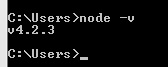
To verify if the installation was successful, enter the command node –v in the terminal window.
Installation on Mac OS X
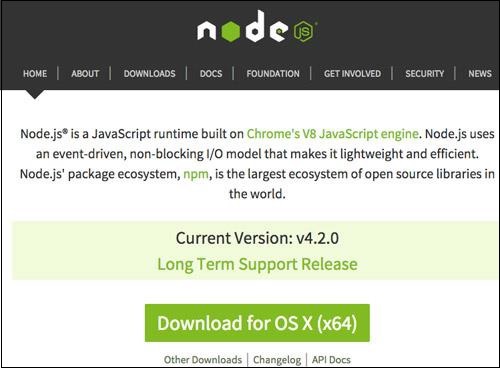
To install node.js on OS X you can download a pre-compiled binary package which makes a nice and easy installation. Head over to www.nodejs.org and click the install button to download the latest package.
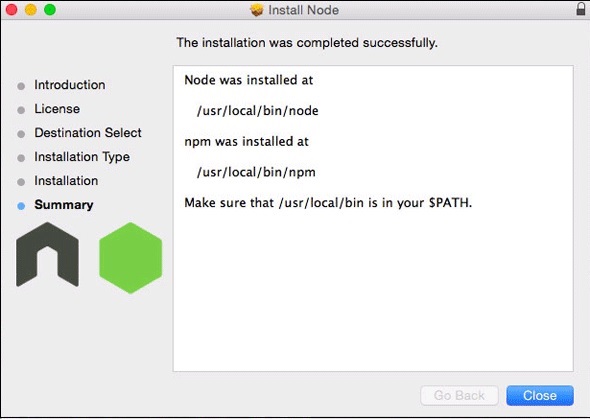
Install the package from the .dmg by following along the install wizard which will install both node and npm. npm is the Node Package Manager which facilitates installs of additional packages for Node.js.
Installation on Linux
You need to install a number of dependencies before you can install Node.js and npm.- Ruby and GCC. You’ll need Ruby 1.8.6 or newer and GCC 4.2 or newer
- Homebrew. Homebrew is a package manager originally for the Mac, but it’s been ported to Linux as Linuxbrew. You can learn more about Homebrew at the http://brew.sh/ at the http://brew.sh/linuxbrew.
Integrated Development Environment (IDE) Support
JavaScript can be built on a plethora of development environments like Visual Studio, Sublime Text 2, WebStorm/PHPStorm, Eclipse, Brackets, etc. The Visual Studio Code and Brackets IDE is discussed in this section. The development environment used here is Visual Studio Code (Windows platform).Visual Studio Code
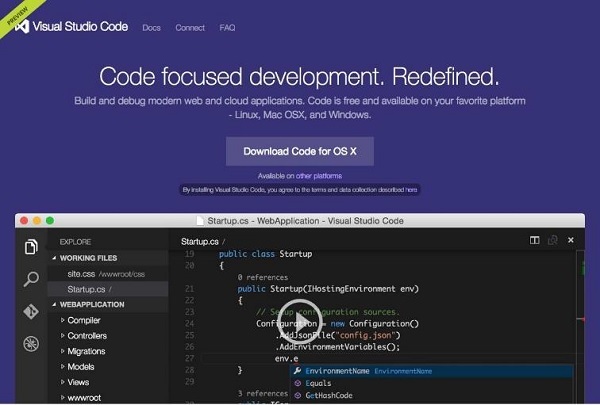
This is open source IDE from Visual Studio. It is available for Mac OS X, Linux, and Windows platforms. VScode is available at https://code.visualstudio.com.Installation on Windows
Download Visual Studio Code for Windows.
Double-click on VSCodeSetup.exe to launch the setup process. This will only take a minute.
Following is the screenshot of the IDE.
You may directly traverse to the file’s path by a right-click on the file → open in command prompt. Similarly, the Reveal in Explorer option shows the file in the File Explorer.
Installation on Mac OS X
Visual Studio Code’s Mac OS X specific installation guide can be found at https://code.visualstudio.com/docs/setup/setup-overviewInstallation on Linux
Linux specific installation guide for Visual Studio Code can be found at https://code.visualstudio.com/Docs/editor/setup.Brackets
Brackets is a free open-source editor for web development, created by Adobe Systems. It is available for Linux, Windows and Mac OS X. Brackets is available at http://brackets.io.
You can run DOS prompt/Shell within Brackets itself by adding one more extension Brackets Shell.
Upon installation, you will find an icon of shell on the right hand side of the editor . Once you click on the icon, you will see the shell window as shown in the following screenshot.
You are all set!!!

No comments:
Post a Comment