
In this chapter, we will learn to login into the cPanel Dashboard.
For logging into the dashboard, you will need your login credentials.
This information is sent to you, when you have signed up for cPanel
hosting or you may have created during purchase of hosting.
cPanel Dashboard is accessible by two ports – 2082 for unsecured connections and 2083 for secured connection, many hosting providers support unsecured connections, but it is always recommended that you should use a secured connection only.
There are many ways to find the login screen of a cPanel. Recommended is that you may use the IP address of your cPanel, you may find the cPanel using IP address by typing the following in address bar −
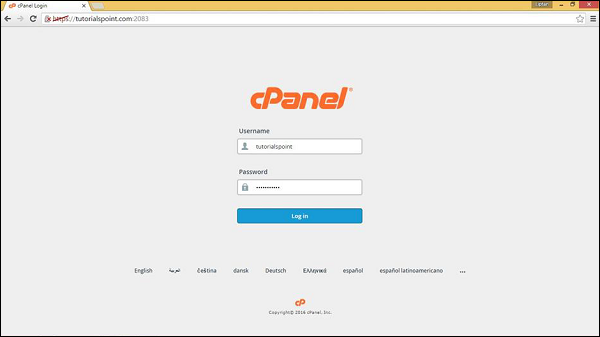 You can enter the Username and Password and press the Log in button to login into the cPanel Dashboard.
cPanel Dashboard is accessible by two ports – 2082 for unsecured connections and 2083 for secured connection, many hosting providers support unsecured connections, but it is always recommended that you should use a secured connection only.
There are many ways to find the login screen of a cPanel. Recommended is that you may use the IP address of your cPanel, you may find the cPanel using IP address by typing the following in address bar −
https://<your_IP_address>:2083
https://<your_IP_address>/cpanel
If you have already updated your Nameservers for your domain, then you may use your domain for directly accessing cPanel by your domain. You may find cPanel login screen using your domain by typing the following into the address bar −
https://<your_domain>:2083
https://<your_domain>/cpanel
Once you are redirected to your login screen, you will find the login screen like shown below.
You can enter the Username and Password and press the Log in button to login into the cPanel Dashboard.

No comments:
Post a Comment