
Image Scaler is a very useful tool to scale an Image to increase or
decrease its dimensions, or we can say to resize an Image. To scale an
image, we need to follow these steps −
Step 1 − Open Image Scaler by clicking Scaler from Images section.
Step 2 − Navigate to the directories by clicking on folder icon on the left hand side, same way as done above.
Step 3 − Select the File which you want to resize by clicking on the Name of File.
Note − Image Scaler is a single image tool, and can be used with a single image at a Time.
Step 4 − Enter either new dimensions in Pixels or Enter Percentage by which you want to increase or decrease the Image. You can select, Keep Aspect Ratio, so that the Image ratio is not disturbed, and also you can retain the old copy of the file as Image Scalar replaces old Image to the new one.
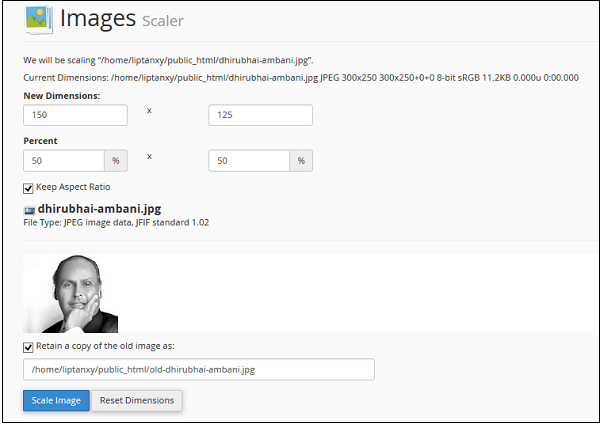 Step 5 − Finally Click Scale Image.
Step 1 − Open Image Scaler by clicking Scaler from Images section.
Step 2 − Navigate to the directories by clicking on folder icon on the left hand side, same way as done above.
Step 3 − Select the File which you want to resize by clicking on the Name of File.
Note − Image Scaler is a single image tool, and can be used with a single image at a Time.
Step 4 − Enter either new dimensions in Pixels or Enter Percentage by which you want to increase or decrease the Image. You can select, Keep Aspect Ratio, so that the Image ratio is not disturbed, and also you can retain the old copy of the file as Image Scalar replaces old Image to the new one.
Step 5 − Finally Click Scale Image.

No comments:
Post a Comment