
About Shortcuts
You can navigate the Eclipse User Interface using only the keyboard by −- Using mnemonics associated with menus and menu items.
- Using mnemonics associated with controls in a dialog box or view or editor.
- Using accelerators associated with actions such as menu items and buttons on the toolbar.
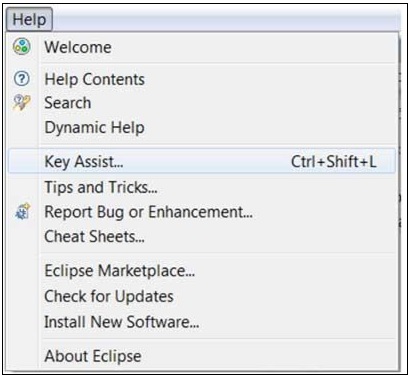 The Key Assist action which can be invoked by clicking Ctrl + Shift +
L shows us all the accelerators or shortcut keys available in Eclipse.
The Key Assist action which can be invoked by clicking Ctrl + Shift +
L shows us all the accelerators or shortcut keys available in Eclipse.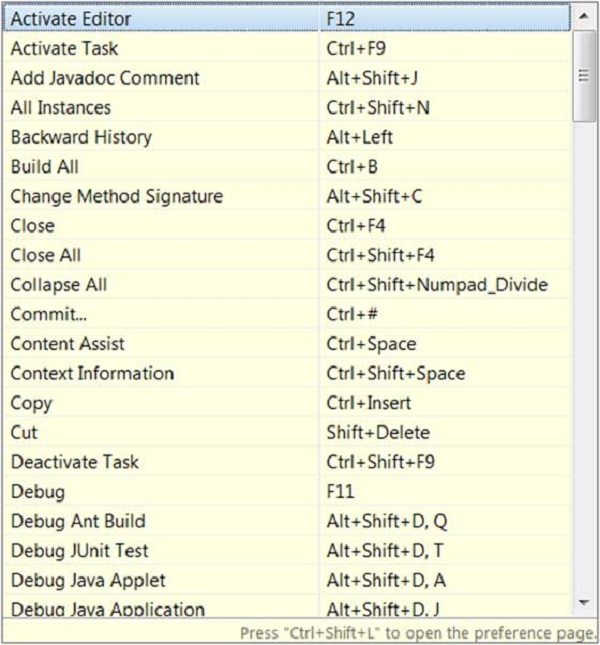 The key combination assigned to an action can be changed using the
Keys preference page. There are many commands or actions in Eclipse for
which there are no shortcut keys. This preference page also allows you
to assign shortcut keys to these actions.
The key combination assigned to an action can be changed using the
Keys preference page. There are many commands or actions in Eclipse for
which there are no shortcut keys. This preference page also allows you
to assign shortcut keys to these actions.For example, to assign Alt + C as the shortcut key to trigger the command that brings up the New Class dialog box select New Class in the command list, navigate to the Bindings text box and then press Alt + C. The
when dropdown listallows you to select a context in which the shortcut key is valid. Ensure that there are no conflicts for the selected key combination and click on the OK button.
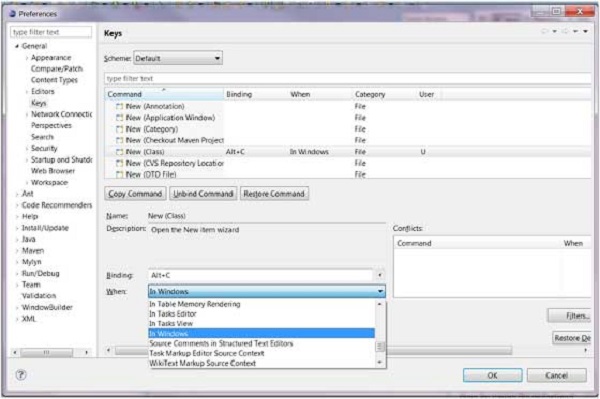 Now you can press Alt + C to bring up the New Class wizard.

No comments:
Post a Comment