
You can use cPanel Backup Wizard to Backup and Restore your cPanel
website step by step. cPanel Backup wizard is created for non–advanced
users to simplify the backup and restore process.
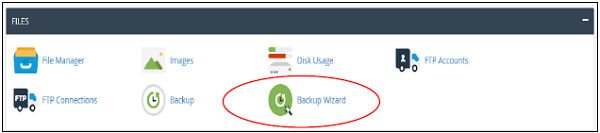
To use cPanel Backup Wizard, open this interface by clicking the Backup Wizard link, which can be found under the Files section of the cPanel Home.
 Once you are inside your Backup Wizard you can Create Backups or Restore Backups through the similar Interface shown below −
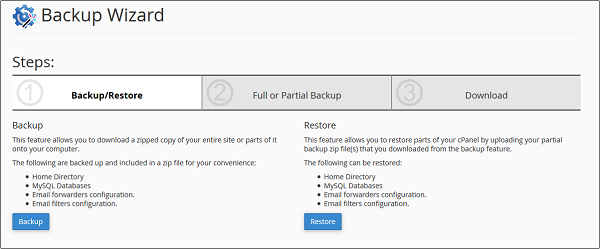 To use this Backup Wizard, there are 3 important steps −
If you need to download backup of your website
Step 1 − Select Backup.
Step 2 − Select Full or Partial backup, as stated in the previous chapter. We cannot restore Full Backup, same applies here too. If you wish to download Partial Backup, you can click on any one from the Home Directory, MySQL Databases or Email Forwards & Filters. Partial Backup downloaded from Backup Wizards can be restored through the Backup Wizard only.
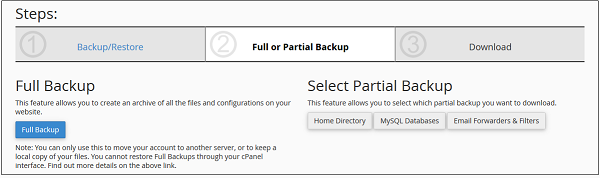 Step 3 − Download your backup according to your choice.
If you need to restore your website form the backup you downloaded, follow these steps −
Step 1 − Select Restore from Backup Wizard Interface.
Step 2 − Select Restore Type from Home Directory, MySQL Databases or Email Forwarders & Filters.
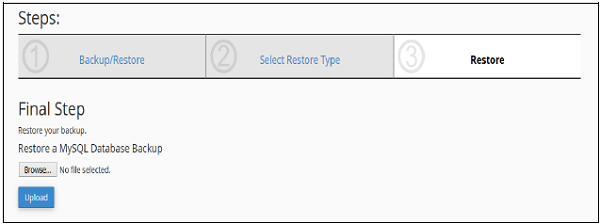
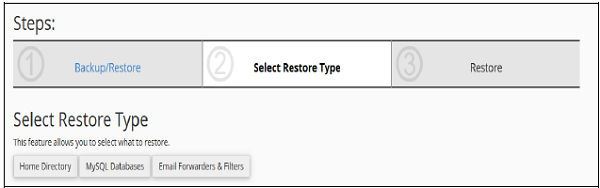 Step 3 − Upload your backup file to and click on Restore Button to restore your backup.
To use cPanel Backup Wizard, open this interface by clicking the Backup Wizard link, which can be found under the Files section of the cPanel Home.
Once you are inside your Backup Wizard you can Create Backups or Restore Backups through the similar Interface shown below −
To use this Backup Wizard, there are 3 important steps −If you need to download backup of your website
Step 1 − Select Backup.
Step 2 − Select Full or Partial backup, as stated in the previous chapter. We cannot restore Full Backup, same applies here too. If you wish to download Partial Backup, you can click on any one from the Home Directory, MySQL Databases or Email Forwards & Filters. Partial Backup downloaded from Backup Wizards can be restored through the Backup Wizard only.
Step 3 − Download your backup according to your choice.If you need to restore your website form the backup you downloaded, follow these steps −
Step 1 − Select Restore from Backup Wizard Interface.
Step 2 − Select Restore Type from Home Directory, MySQL Databases or Email Forwarders & Filters.
Step 3 − Upload your backup file to and click on Restore Button to restore your backup.

No comments:
Post a Comment