
The Compiler of the latest versions of CoffeeScript is written in
CoffeeScript itself. To run CoffeeScript files in your system without a
browser, you need a JavaScript runtime.
The command-line version of CoffeeScript is distributed as a Node.js package. Therefore, to install CoffeeScript (command-line) in your system, you first need to install node.js.
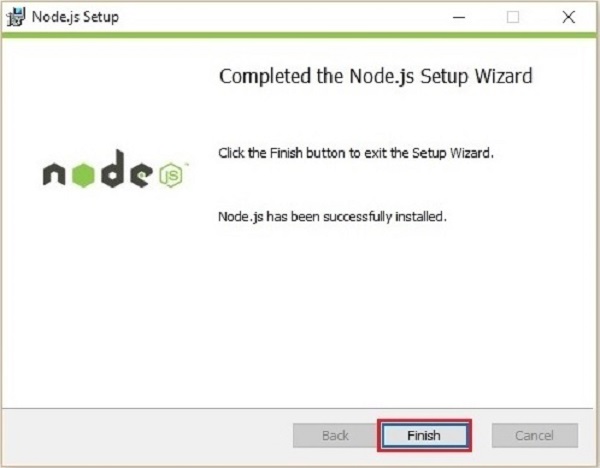
 Click on the Finish button of the Node.js set-up wizard as shown below to complete the Node.js installation.
Node.js
Node.js is a JavaScript framework which is used to develop network server applications. It also acts as a bridge between JavaScript and the Operating System.The command-line version of CoffeeScript is distributed as a Node.js package. Therefore, to install CoffeeScript (command-line) in your system, you first need to install node.js.
Installing Node.js
Here are the steps to download and install Node.js in your system.Step 1
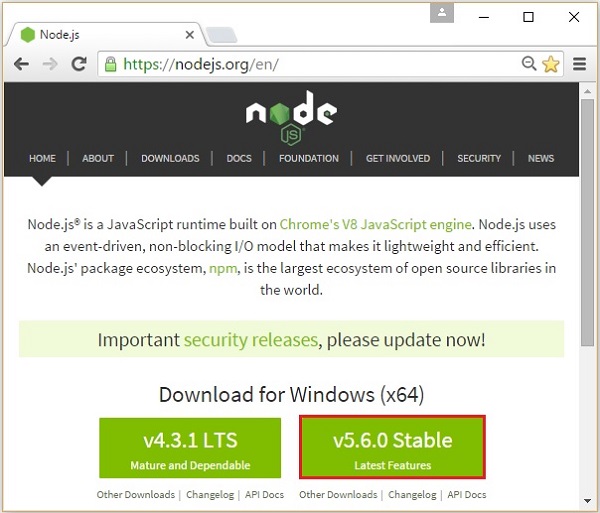
Visit the nodejs homepage and download its stable version for windows by clicking on the button hilighted in the snapshot given below.
Step 2
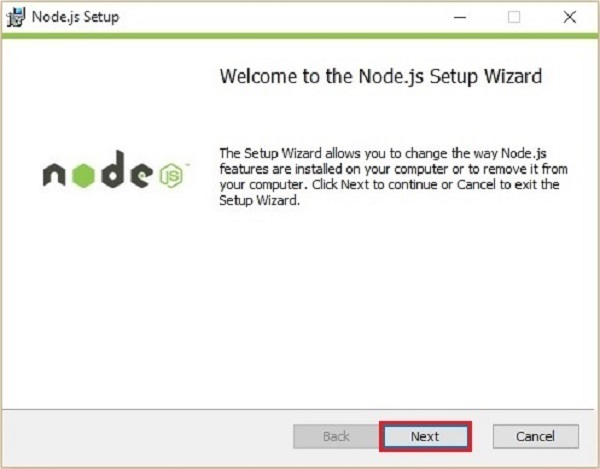
On clicking, a .msc file named node-v5.50-x64 will be downloaded into your system, run the downloaded file to start the Node.js set-up. Here is the snapshot of the Welcome page of Node.js set-up wizard.
Step 3
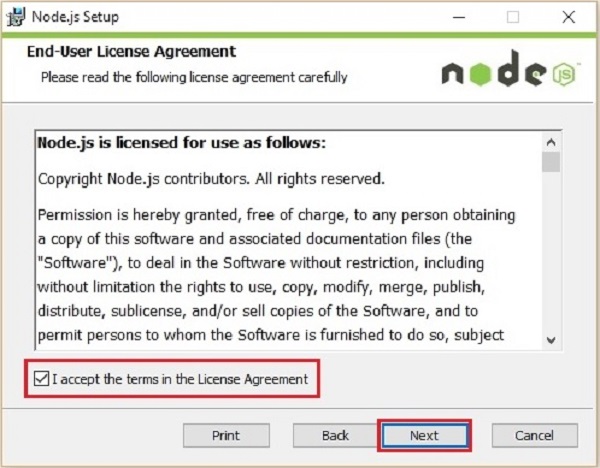
Click on the Next button in the Welcome page of the Node.js set-up wizard which will lead you to the End-user License Agreement page. Accept the license agreement and click on the Next button as shown below.
Step 4
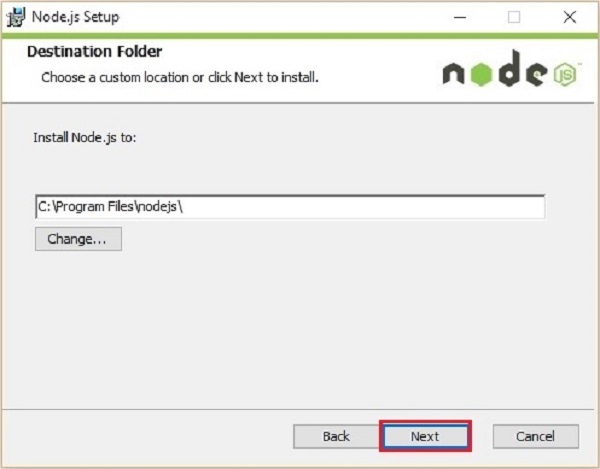
On the next page, you need to set the destination folder to the path where you want to install Node.js. Change the path to the required folder and click on the Next button.
Step 5
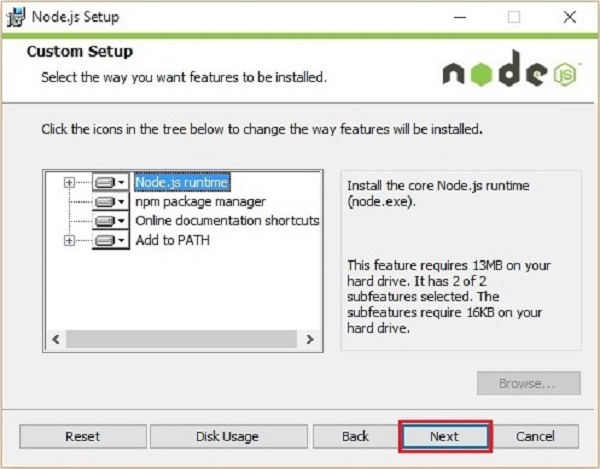
In the Custom setup page, select the Node.js runtime to install node.exe file and click Next.
Step 6
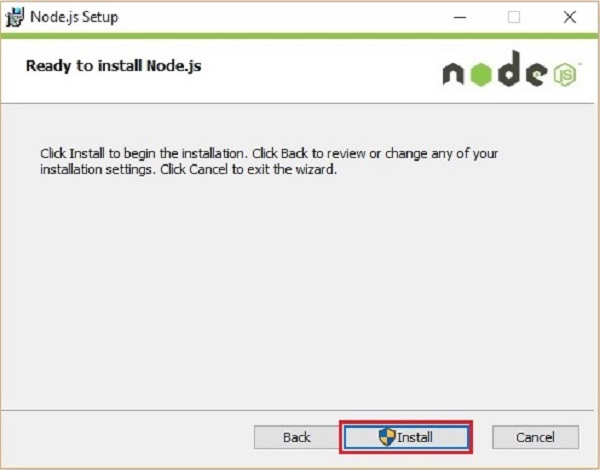
Finally, click on the Install button which will start the Node.js installation.
Click on the Finish button of the Node.js set-up wizard as shown below to complete the Node.js installation.
Installing CoffeeScript
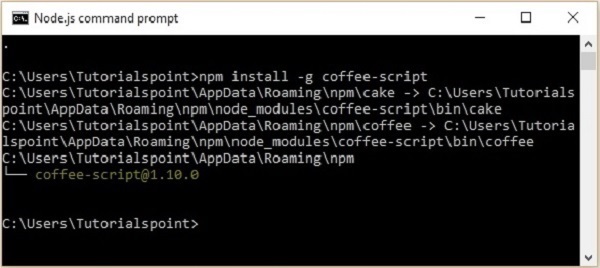
Node.js provides you a command prompt (Node.js command prompt). You can install CoffeeScript globally by entering the following command in it.c:\> npm install -g coffeescriptOn executing the the above command, CoffeeScript will be installed in your system by producing the following output.
Verification
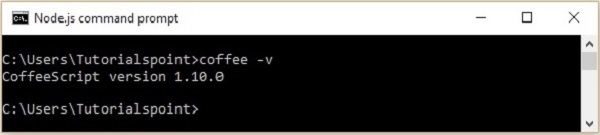
You can verify the installation of the CoffeeScript by typing the following command.c:\> coffee -vOn successful installation, this command gives you the version of CoffeeScript as shown below.


No comments:
Post a Comment