
Navigating the Eclipse Workspace
The navigate menu provides a number of menu items that allow you to quickly locate and navigate to a resource.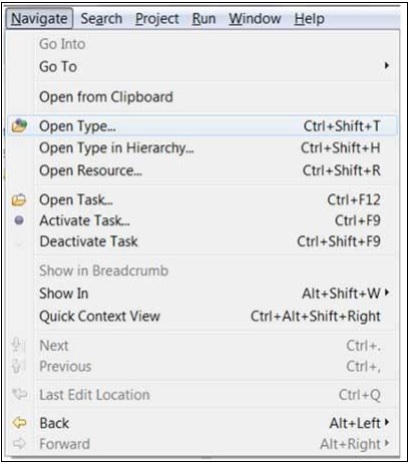 Among them, the Open Type, Open Type in Hierarchy and Open Resource menu items tend to be very useful.
Open Type
The Open Type menu item brings up a dialog box that allows you to locate a Java type. In the filter text box enter in either the fully qualified name or name of a class. The '*' character which stands for 0 or more characters and '?' which stands for a single character can be used to specify patterns. The dialog box will show all the names that match the given pattern.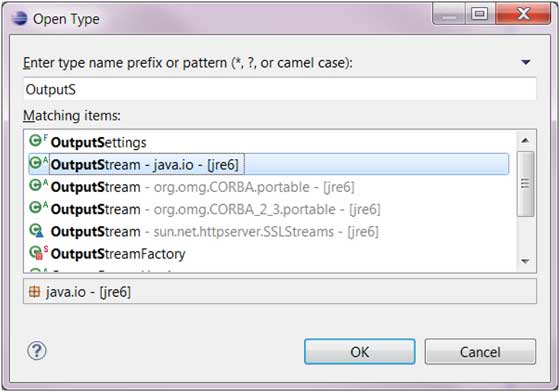 Select the type you are interested in and click OK.
Eclipse will open up an editor showing the selected type. If source code is not available for the selected type it will use the Class File editor to show the byte code of the selected type.
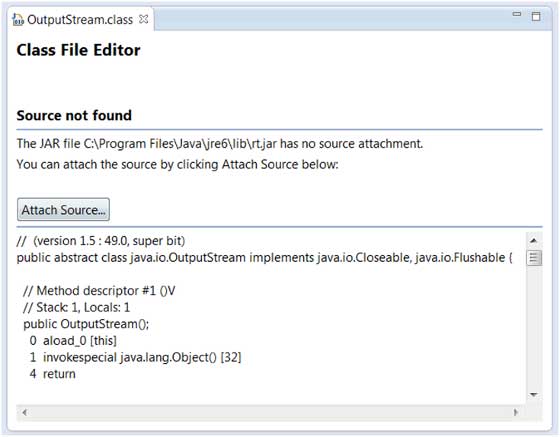 You can use the Attach Source button to specify where the source code for the class is located.
The source code for the types that comes with the java distribution is in src.zip which is located in the java home folder.
Open Type in Hierarchy
The Open Type in Hierarchy menu items allows you to open a type in the Type Hierarchy view. The Open Type in Hierarchy dialog box can be used to locate any Java type in the build path.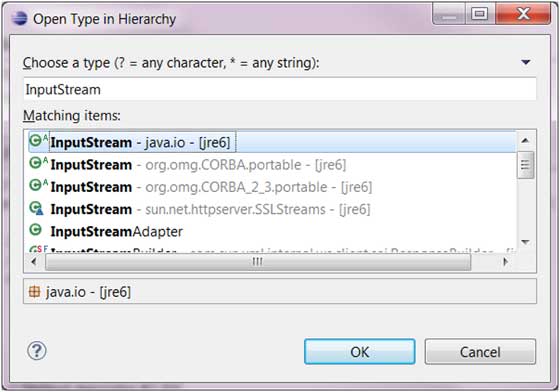 Once you select a type, its hierachy is shown in the Type Hierarchy view.
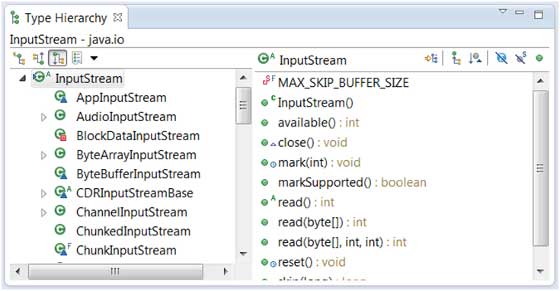 The Type Hierarchy is an excellent view for learning about the
hierarchy of a type. On the left hand side pane type, its super type and
sub type are available. On the right hand side pane you can see the
attributes and methods of a selected type are shown.
The Type Hierarchy is an excellent view for learning about the
hierarchy of a type. On the left hand side pane type, its super type and
sub type are available. On the right hand side pane you can see the
attributes and methods of a selected type are shown.Open Resource
The open resource menu item can be used to locate a file in the workspace. The '*' character which stands for 0 or more characters and '?' which stands for a single character can be used to specify patterns. The dialog box will show all the names that match the given pattern.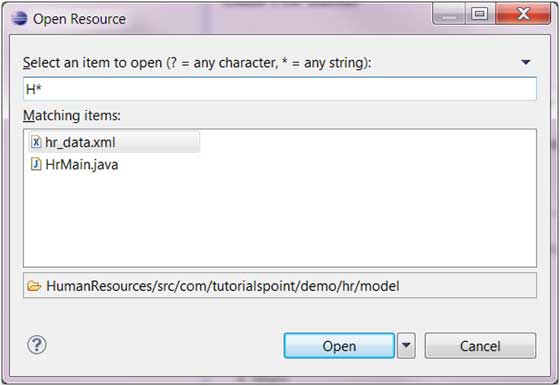 Select the file that you want to open in an editor and click on the OK button.

No comments:
Post a Comment