
Opening the New Java Project wizard
The New Java Project wizard can be used to create a new java project. There are many ways to open this wizard −- By clicking on the File menu and choosing New →Java Project.
- By right clicking anywhere in the Project Explorer and selecting New → Java Project.
- By clicking on the New button (
 ) in the Tool bar and selecting Java Project.
Using the New Java Project wizard
The New Java Project Wizard has two pages. On the first page −- Enter the Project Name
- Select the Java Runtime Environment (JRE) or leave it at the default
- Select the Project Layout which determines whether there would be a separate folder for the source codes and class files. The recommended option is to create separate folders for sources and class files.
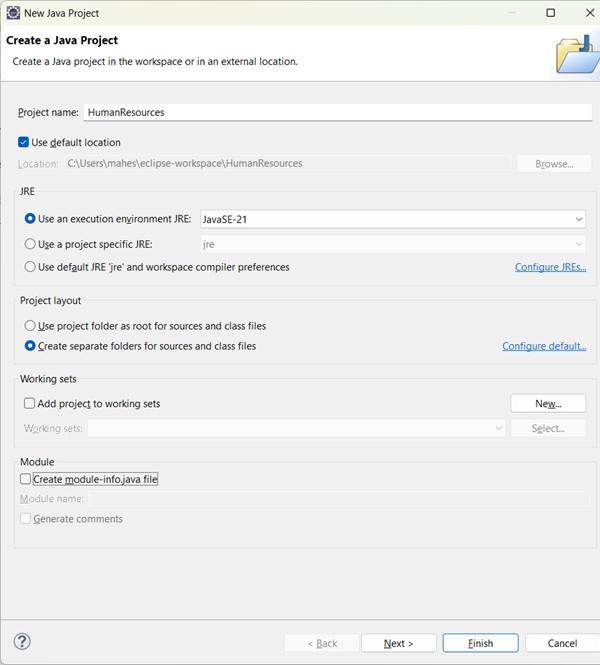 You can click on the Finish button to create the project or click on the Next button to change the java build settings.
On the second page you can change the Java Build Settings like setting the Project dependency (if there are multiple projects) and adding additional jar files to the build path.
Viewing the Newly Created Project
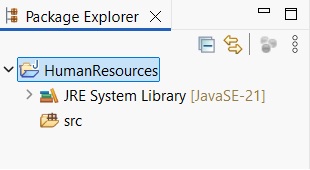
The package explorer shows the newly created Java project. The icon that represents a Project is decorated with aJto show that it is a Java Project. The folder icon is decorated to show that it is a java source folder.


No comments:
Post a Comment