পৃষ্ঠাসমূহ

Search Your Article

CS


Welcome to GoogleDG – your one-stop destination for free learning resources, guides, and digital tools.

At GoogleDG, we believe that knowledge should be accessible to everyone. Our mission is to provide readers with valuable ebooks, tutorials, and tech-related content that makes learning easier, faster, and more enjoyable.

What We Offer:

  • 📘 Free & Helpful Ebooks – covering education, technology, self-development, and more.

  • 💻 Step-by-Step Tutorials – practical guides on digital tools, apps, and software.

  • 🌐 Tech Updates & Tips – simplified information to keep you informed in the fast-changing digital world.

  • 🎯 Learning Support – resources designed to support students, professionals, and lifelong learners.

    Latest world News 


Our Vision

To create a digital knowledge hub where anyone, from beginners to advanced learners, can find trustworthy resources and grow their skills.

Why Choose Us?

✔ Simple explanations of complex topics
✔ 100% free access to resources
✔ Regularly updated content
✔ A community that values knowledge sharing

We are continuously working to expand our content library and provide readers with the most useful and relevant digital learning materials.

📩 If you’d like to connect, share feedback, or suggest topics, feel free to reach us through the Contact page.

Pageviews

Monday, January 16, 2017

Eclipse - Running Program

Running a Java Program

The quickest way to run a Java program is by using the Package Explorer view.
In the Package Explorer view −

  • Right click on the java class that contains the main method.
  • Select Run As → Java Application.
The same action can be performed using the Package Explorer view by selecting the class that contains the main method and clicking Alt + Shift + X, J.
Either actions mentioned above create a new Run Configuration and use it to start the Java application.
If a Run configuration has already been created you can use it to start the Java application by selecting Run Configurations from the Run menu, clicking on the name of the run configuration and then clicking on the Run button.
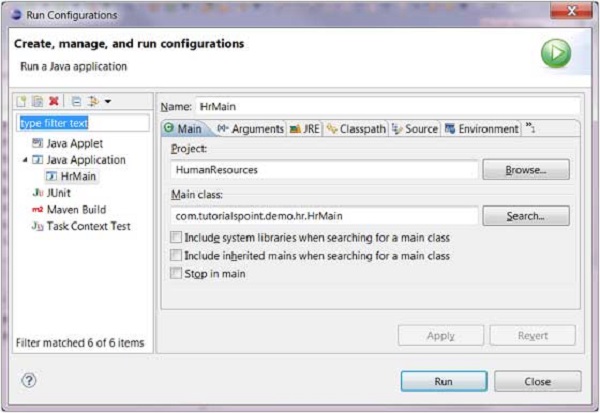
Java Application The Run item on the Run menu can be used to restart the java application that was previously started.
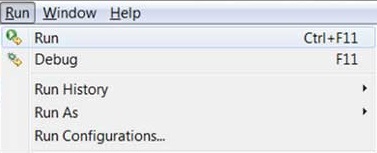
Restart Java Application The shortcut key to launch the previously launched Java application is Ctrl + F11.

No comments:

Post a Comment