
This chapter explains how to create a spreadsheet and manipulate it
using Java. Spreadsheet is a page in an Excel file; it contains rows and
columns with specific names.
After completing this chapter, you will be able to create a spreadsheet and perform read operations on it.
The following code snippet is used to create a spreadsheet.
The following code snippet is used to create a row.
The following code is used to write the above data into a spreadsheet.
After completing this chapter, you will be able to create a spreadsheet and perform read operations on it.
Create a Spreadsheet
First of all, let us create a spreadsheet using the referenced classes discussed in the earlier chapters. By following the previous chapter, create a workbook first and then we can go on and create a sheet.The following code snippet is used to create a spreadsheet.
//Create Blank workbook
XSSFWorkbook workbook = new XSSFWorkbook();
//Create a blank spreadsheet
XSSFSheet spreadsheet = workbook.createSheet("Sheet Name");
Rows on Spreadsheet
Spreadsheets have a grid layout. The rows and columns are identified with specific names. The columns are identified with alphabets and rows with numbers.The following code snippet is used to create a row.
XSSFRow row = spreadsheet.createRow((short)1);
Write into a Spreadsheet
Let us consider an example of employee data. Here the employee data is given in a tabular form.| Emp Id | Emp Name | Designation |
|---|---|---|
| Tp01 | Gopal | Technical Manager |
| TP02 | Manisha | Proof Reader |
| Tp03 | Masthan | Technical Writer |
| Tp04 | Satish | Technical Writer |
| Tp05 | Krishna | Technical Writer |
import java.io.File;
import java.io.FileOutputStream;
import java.util.Map;
import java.util.Set;
import java.util.TreeMap;
import org.apache.poi.ss.usermodel.Cell;
import org.apache.poi.xssf.usermodel.XSSFRow;
import org.apache.poi.xssf.usermodel.XSSFSheet;
import org.apache.poi.xssf.usermodel.XSSFWorkbook;
public class Writesheet
{
   public static void main(String[] args) throws Exception
   {
      //Create blank workbook
      XSSFWorkbook workbook = new XSSFWorkbook();
      //Create a blank sheet
      XSSFSheet spreadsheet = workbook.createSheet(
      " Employee Info ");
      //Create row object
      XSSFRow row;
      //This data needs to be written (Object[])
      Map < String, Object[] > empinfo =
      new TreeMap < String, Object[] >();
      empinfo.put( "1", new Object[] {
      "EMP ID", "EMP NAME", "DESIGNATION" });
      empinfo.put( "2", new Object[] {
      "tp01", "Gopal", "Technical Manager" });
      empinfo.put( "3", new Object[] {
      "tp02", "Manisha", "Proof Reader" });
      empinfo.put( "4", new Object[] {
      "tp03", "Masthan", "Technical Writer" });
      empinfo.put( "5", new Object[] {
      "tp04", "Satish", "Technical Writer" });
      empinfo.put( "6", new Object[] {
      "tp05", "Krishna", "Technical Writer" });
      //Iterate over data and write to sheet
      Set < String > keyid = empinfo.keySet();
      int rowid = 0;
      for (String key : keyid)
      {
         row = spreadsheet.createRow(rowid++);
         Object [] objectArr = empinfo.get(key);
         int cellid = 0;
         for (Object obj : objectArr)
         {
            Cell cell = row.createCell(cellid++);
            cell.setCellValue((String)obj);
         }
      }
      //Write the workbook in file system
      FileOutputStream out = new FileOutputStream(
      new File("Writesheet.xlsx"));
      workbook.write(out);
      out.close();
      System.out.println(
      "Writesheet.xlsx written successfully" );
   }
}
Save the above Java code as Writesheet.java, and then compile and run it from the command prompt as follows:
$javac Writesheet.java
$java Writesheet
It will compile and execute to generate an Excel file named Writesheet.xlsx in your current directory and you will get the following output in the command prompt.
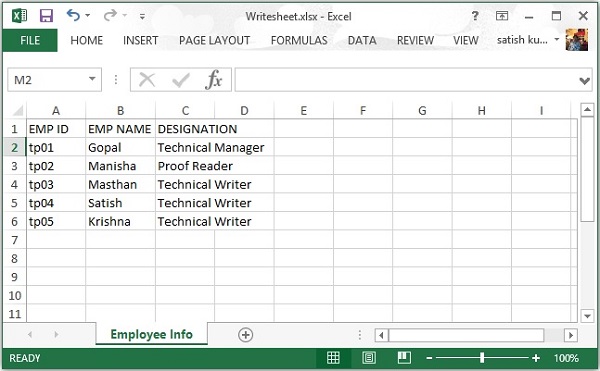
Writesheet.xlsx written successfullyThe Writesheet.xlsx file looks as follows.
Read from a Spreadsheet
Let us consider the above excel file named Writesheet.xslx as input. Observe the following code; it is used for reading the data from a spreadsheet.import java.io.File; import java.io.FileInputStream; import java.util.Iterator; import org.apache.poi.ss.usermodel.Cell; import org.apache.poi.ss.usermodel.Row; import org.apache.poi.xssf.usermodel.XSSFRow; import org.apache.poi.xssf.usermodel.XSSFSheet; import org.apache.poi.xssf.usermodel.XSSFWorkbook; public class Readsheet { static XSSFRow row; public static void main(String[] args) throws Exception { FileInputStream fis = new FileInputStream( new File("WriteSheet.xlsx")); XSSFWorkbook workbook = new XSSFWorkbook(fis); XSSFSheet spreadsheet = workbook.getSheetAt(0); Iterator < Row > rowIterator = spreadsheet.iterator(); while (rowIterator.hasNext()) { row = (XSSFRow) rowIterator.next(); Iterator < Cell > cellIterator = row.cellIterator(); while ( cellIterator.hasNext()) { Cell cell = cellIterator.next(); switch (cell.getCellType()) { case Cell.CELL_TYPE_NUMERIC: System.out.print( cell.getNumericCellValue() + " \t\t " ); break; case Cell.CELL_TYPE_STRING: System.out.print( cell.getStringCellValue() + " \t\t " ); break; } } System.out.println(); } fis.close(); } }Let us keep the above code in Readsheet.java file, and then compile and run it from the command prompt as follows:
$javac Readsheet.java
$java Readsheet
If your system environment is configured with the POI library, it will compile and execute to generate the following output in the command prompt.
EMP ID EMP NAME DESIGNATION
 tp01   Gopal    Technical Manager
 tp02   Manisha  Proof Reader
 tp03   Masthan  Technical Writer
 tp04   Satish   Technical Writer
 tp05   Krishna  Technical Writer


No comments:
Post a Comment