
Window manager is used to handle the top level window. It helps in controlling the size, position, and other attributes of the window. In Tk, . is used to refer the main window. The syntax for window command is shown below −
Some of the above commands are used in the following example −
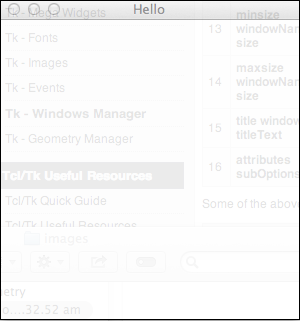 As you can see alpha is one of the attributes available. The list of commonly used subcommands are listed below −

wm option window argumentsThe list of options available for Tk wm command is shown in the following table −
| S.No. | Syntax & Description |
|---|---|
| 1 | aspect windowName a b c d Tries to maintain the ratio of width/height to be between a/b and c/d. |
| 2 | geometry windowName geometryParams Use to set geometry for window. |
| 3 | grid windowName w h dx dy Sets the grid size. |
| 4 | group windowName leaderName leaderName gives the leader of a group of related windows. |
| 5 | deiconify windowName Brings the screen to normal if minimized. |
| 6 | iconify windowName Minimizes the window. |
| 7 | state windowName Returns the current state of window. |
| 8 | withdraw windowName Unmaps the window and removes its details in memory. |
| 9 | iconbitmap windowName image Sets or returns the icon bitmap. |
| 10 | iconPhoto windowName image Sets or returns the icon photo. |
| 11 | command windowName commandString Records the startup command in the WM_COMMAND property. |
| 12 | protocol windowName arguments Register a command to handle the protocol request name, which can be WM_DELETE_WINDOW, WM_SAVE_YOURSELF, WM_TAKE_FOCUS. Eg: wm protocol. WM_DELETE_WINDOW Quit. |
| 13 | minsize windowName size Determines the minimum window size. |
| 14 | maxsize windowName size Determines the maximum window size. |
| 15 | title windowName titleText Determines the title for window. |
| 16 | attributes subOptions There are lots of attributes available like alpha, full screen and so on. |
#!/usr/bin/wish

wm maxsize . 800 800
wm minsize . 300 300
wm title . "Hello"
wm attributes . -alpha ".90"
wm geometry . 300x200+100+100
When we run the above program, we will get the following output −
As you can see alpha is one of the attributes available. The list of commonly used subcommands are listed below −| S.No. | Syntax & Description |
|---|---|
| 1 | -alpha number Sets the alpha for window. |
| 2 | -fullscreen number Number can be 0 for normal screen or 1 for full screen. |
| 3 | -topmost number Sets or returns whether window is topmost.Value can be 0 or 1. |
Creating Window
We can use toplevel command to create window and an example is shown below −#!/usr/bin/wish toplevel .tWhen we run the above program, we will get the following output −
Destroying Window
We can use destroy command to destroy window and an example is shown below −#!/usr/bin/wish destroy .tThe above command will destroy window named .t.


No comments:
Post a Comment