
The geometry manager is used to manage the geometry of the window and other frames. We can use it to handle the position and size of the window and frames. The layout widgets are used for this purpose.
A simple example is shown below for the above Statement −.
A simple example is shown below for the above statement −
Positioning and sizing
The syntax for positioning and sizing window is shown below −wm geometry . wxh+/-x+/-yHere, w refers to width and h refers to height. It is followed by a '+' or '-' sign with number next referring to the x position on screen. Similarly the following '+' or '-' sign with number refers to the y position on screen
A simple example is shown below for the above Statement −.
#!/usr/bin/wish

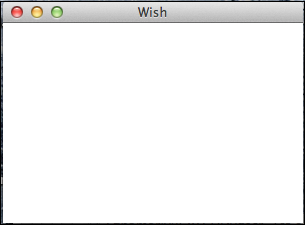
wm geometry . 300x200+100+100
When we run the above program, we will get the following output −
Grid Geometry
The syntax for grid geometry is shown below −grid gridName -column number -row number -columnspan number -rowspan numberThe column, row, columnspan, or rowspan helps in providing the grid geometry.
A simple example is shown below for the above statement −
#!/usr/bin/wish

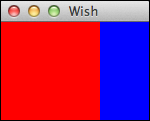
frame .myFrame1 -background red  -height 100 -width 100
frame .myFrame2 -background blue -height 100 -width 50
grid .myFrame1 -columnspan 10 -rowspan 10 -sticky w
grid .myFrame2 -column 10 -row 2
When we run the above program, we will get the following output −


No comments:
Post a Comment