
We will discuss, in this chapter, how to choose the most optimized page that will suit your venture.
 Once you have decided what type of page you would like to create, you
need to add in the basic details and sub-categories to get the page up
and running. For each page type, different information is required.
Once you have decided what type of page you would like to create, you
need to add in the basic details and sub-categories to get the page up
and running. For each page type, different information is required.
The following is a snapshot of what information you put in to begin the creation wizard. You can change the page whenever and as many times as you would like after the setup. The only thing to keep note of is that if you change from a business or local place you will lose your reviews, maps and check-ins.
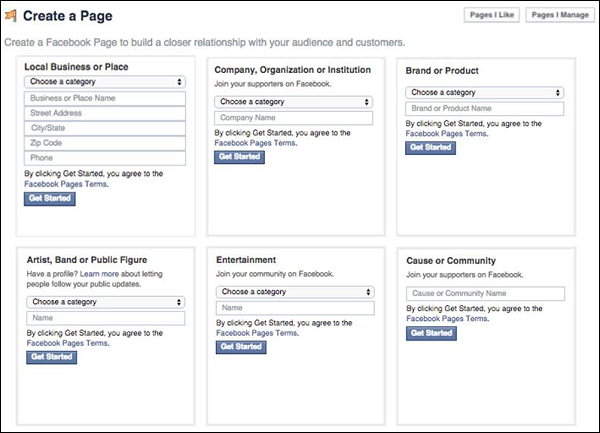 The image above is what the information fields look like when you click on one of the categories in ‘create a page’.
You can also add a detailed description, website link and a custom Facebook web URL. You will also be required to confirm that you are the authorized representative to create a Facebook page for the business. Once you have finished this step, you will then be asked to add a profile picture, add the page to your favorites and have the option to claim any duplicate pages relating to your business.
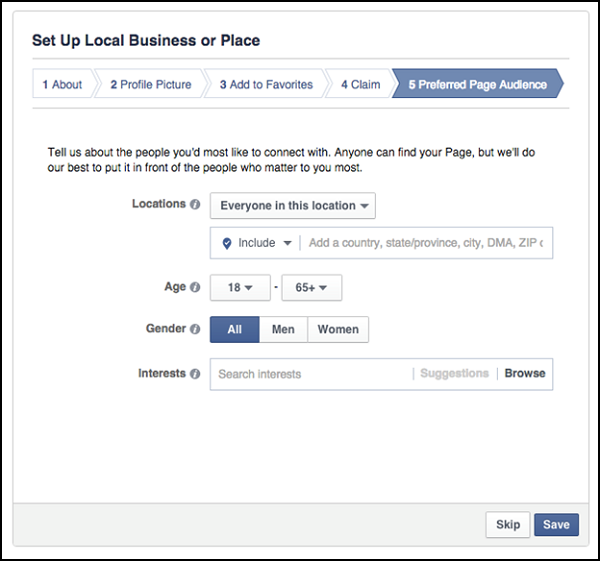
The last step to getting your business or place page set up is to choose your preferred page audience. This will let Facebook know what demographics should see your page. The setting up of Facebook pages for other categories are fairly similar.
 Once you have completed the Setup Wizard, you will be directed to
your new page. It will look empty except for the information you put in
during the setup.
Once you have completed the Setup Wizard, you will be directed to
your new page. It will look empty except for the information you put in
during the setup.
Choosing which page suits your venture
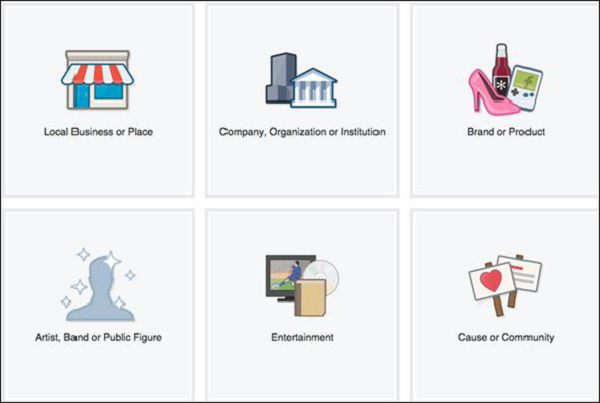
The first step to ‘create a page’ on Facebook requires you to select the page category. While all of the pages have the same look and feel, they have different information and features that you can highlight and promote.
Once you have decided what type of page you would like to create, you
need to add in the basic details and sub-categories to get the page up
and running. For each page type, different information is required.The following is a snapshot of what information you put in to begin the creation wizard. You can change the page whenever and as many times as you would like after the setup. The only thing to keep note of is that if you change from a business or local place you will lose your reviews, maps and check-ins.
The image above is what the information fields look like when you click on one of the categories in ‘create a page’.Adding page details
The Facebook wizard will guide you through the process quite easily when you are creating your page. If you have decided that your page is a Local Business or Place, you can add tags that help improve the ranking of your page (which will increase visibility when people are searching interests related to your business).You can also add a detailed description, website link and a custom Facebook web URL. You will also be required to confirm that you are the authorized representative to create a Facebook page for the business. Once you have finished this step, you will then be asked to add a profile picture, add the page to your favorites and have the option to claim any duplicate pages relating to your business.
The last step to getting your business or place page set up is to choose your preferred page audience. This will let Facebook know what demographics should see your page. The setting up of Facebook pages for other categories are fairly similar.
Once you have completed the Setup Wizard, you will be directed to
your new page. It will look empty except for the information you put in
during the setup.

No comments:
Post a Comment