
A simple GUI application displaying Hello World message is built using the following steps −
 wxFrame object is the most commonly employed top level window. It is derived from wxWindow class.
A frame is a window whose size and position can be changed by the user.
It has a title bar and control buttons. If required, other components
like menu bar, toolbar and status bar can be enabled. A wxFrame window
can contain any frame that is not a dialog or another frame.
wxFrame object is the most commonly employed top level window. It is derived from wxWindow class.
A frame is a window whose size and position can be changed by the user.
It has a title bar and control buttons. If required, other components
like menu bar, toolbar and status bar can be enabled. A wxFrame window
can contain any frame that is not a dialog or another frame.
- Import wx module.
- Define an object of Application class.
- Create a top level window as object of wx.Frame class. Caption and size parameters are given in constructor.
- Although other controls can be added in Frame object, their layout cannot be managed. Hence, put a Panel object into the Frame.
- Add a StaticText object to display ‘Hello World’ at a desired position inside the window.
- Activate the frame window by show() method.
- Enter the main event loop of Application object.
import wx

app = wx.App()
window = wx.Frame(None, title = "wxPython Frame", size = (300,200))
panel = wx.Panel(window)
label = wx.StaticText(panel, label = "Hello World", pos = (100,50))
window.Show(True)
app.MainLoop()
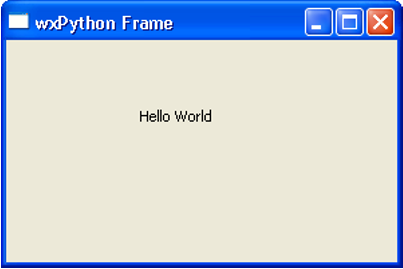
The above code produces the following output −
wxFrame object is the most commonly employed top level window. It is derived from wxWindow class.
A frame is a window whose size and position can be changed by the user.
It has a title bar and control buttons. If required, other components
like menu bar, toolbar and status bar can be enabled. A wxFrame window
can contain any frame that is not a dialog or another frame.

No comments:
Post a Comment