
Creating a good looking GUI by manual coding can be tedious. A visual
GUI designer tool is always handy. Many GUI development IDEs targeted
at wxPython are available. Following are some of them −
wxFormBuilder is an open source, cross-platform WYSIWYG GUI builder that can translate the wxWidget GUI design into C++, Python, PHP or XML format. A brief introduction to usage of wxFormBuilder is given here.
First of all the latest version of wxFormBuilder needs to be downloaded and installed from http://sourceforge.net/projects/wxformbuilder/. On opening the application, a new project with blank grey area at the center appears.
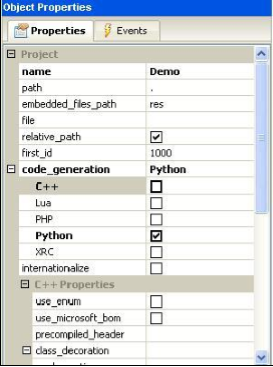
Give a suitable name to the project and choose Python as code generation language. This is done in the Object properties window as shown in the following image −
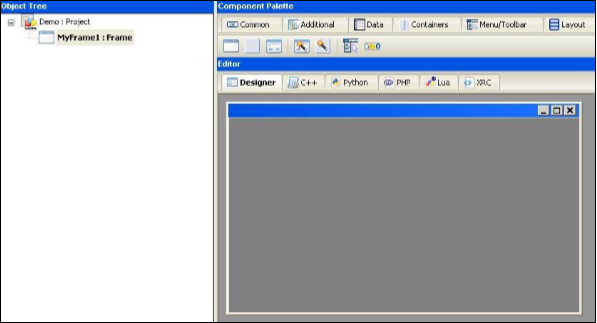
 Then from ‘Forms’ tab of components palette, choose Frame.
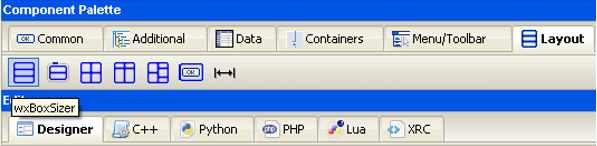
 Add a vertical wxBoxSizer from ‘Layouts’ tab.
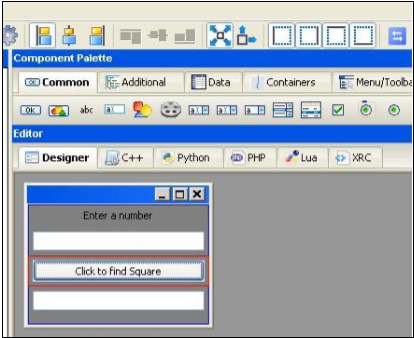
 Add necessary controls in the Box with suitable captions. Here, a
StaticText (label), two TextCtrl objects (text boxes) and a wxButton
object are added. The frame looks like the following image −
Add necessary controls in the Box with suitable captions. Here, a
StaticText (label), two TextCtrl objects (text boxes) and a wxButton
object are added. The frame looks like the following image −
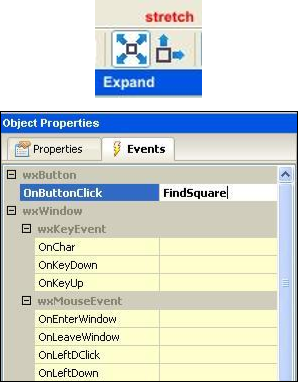
 Enable Expand and Stretch on these three controls. In the object
properties for wxButton object, assign a function findsquare() to
OnButtonClick event.
Enable Expand and Stretch on these three controls. In the object
properties for wxButton object, assign a function findsquare() to
OnButtonClick event.
 Save the project and press F8 to generate Python code for developed GUI. Let the generated file be named as Demo.py
In the executable Python script, import demo.py and define FindSquare() function. Declare Application object and start a main event loop. Following is the executable code −
wxFormBuilder is an open source, cross-platform WYSIWYG GUI builder that can translate the wxWidget GUI design into C++, Python, PHP or XML format. A brief introduction to usage of wxFormBuilder is given here.
First of all the latest version of wxFormBuilder needs to be downloaded and installed from http://sourceforge.net/projects/wxformbuilder/. On opening the application, a new project with blank grey area at the center appears.
Give a suitable name to the project and choose Python as code generation language. This is done in the Object properties window as shown in the following image −
Then from ‘Forms’ tab of components palette, choose Frame.
Add a vertical wxBoxSizer from ‘Layouts’ tab.
Add necessary controls in the Box with suitable captions. Here, a
StaticText (label), two TextCtrl objects (text boxes) and a wxButton
object are added. The frame looks like the following image −
Enable Expand and Stretch on these three controls. In the object
properties for wxButton object, assign a function findsquare() to
OnButtonClick event.
Save the project and press F8 to generate Python code for developed GUI. Let the generated file be named as Demo.pyIn the executable Python script, import demo.py and define FindSquare() function. Declare Application object and start a main event loop. Following is the executable code −
import wx

#import the newly created GUI file
import demo
class CalcFrame(demo.MyFrame1):
   def __init__(self,parent):
      demo.MyFrame1.__init__(self,parent)

   def FindSquare(self,event):
      num = int(self.m_textCtrl1.GetValue())
      self.m_textCtrl2.SetValue (str(num*num))

app = wx.App(False)
frame = CalcFrame(None)
frame.Show(True)
#start the applications
app.MainLoop()
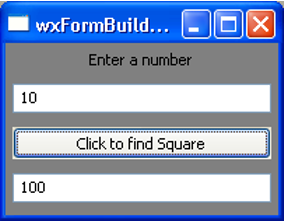
The above code produces the following output −


No comments:
Post a Comment