
wxAui is an Advanced User Interface library incorporated in wxWidgets API. Wx.aui.AuiManager the central class in AUI framework.
AuiManager manages the panes associated with a particular frame using each panel’s information in wx.aui.AuiPanelInfo object. Let us learn about various properties of PanelInfo object control docking and floating behavior.
Putting dockable windows in the top level frame involves the following steps −
First, create an AuiManager object.
The complete code is as follows −
AuiManager manages the panes associated with a particular frame using each panel’s information in wx.aui.AuiPanelInfo object. Let us learn about various properties of PanelInfo object control docking and floating behavior.
Putting dockable windows in the top level frame involves the following steps −
First, create an AuiManager object.
self.mgr = wx.aui.AuiManager(self)Then, a panel with required controls is designed.
pnl = wx.Panel(self)
pbox = wx.BoxSizer(wx.HORIZONTAL)
text1 = wx.TextCtrl(pnl, -1, "Dockable", style = wx.NO_BORDER | wx.TE_MULTILINE)
pbox.Add(text1, 1, flag = wx.EXPAND)
pnl.SetSizer(pbox)
The following parameters of AuiPanelInfo are set.
- Direction − Top, Bottom, Left, Right, or Center
- Position − More than one pane can be placed inside a dockable region. Each is given a position number.
- Row − More than one pane appears in one row. Just like more than one toolbar appearing in the same row.
- Layer − Panes can be placed in layers.
info1 = wx.aui.AuiPaneInfo().Bottom()
self.mgr.AddPane(pnl,info1)
Rest of the top level window may have other controls as usual.
The complete code is as follows −
import wx
import wx.aui

class Mywin(wx.Frame):

   def __init__(self, parent, title):
      super(Mywin, self).__init__(parent, title = title, size = (300,300))

      self.mgr = wx.aui.AuiManager(self)

      pnl = wx.Panel(self)
      pbox = wx.BoxSizer(wx.HORIZONTAL)
      text1 = wx.TextCtrl(pnl, -1, "Dockable", style = wx.NO_BORDER | wx.TE_MULTILINE)
      pbox.Add(text1, 1, flag = wx.EXPAND)
      pnl.SetSizer(pbox)

      info1 = wx.aui.AuiPaneInfo().Bottom()
      self.mgr.AddPane(pnl, info1)
      panel = wx.Panel(self)
      text2 = wx.TextCtrl(panel, size = (300,200), style =  wx.NO_BORDER | wx.TE_MULTILINE)
      box = wx.BoxSizer(wx.HORIZONTAL)
      box.Add(text2, 1, flag = wx.EXPAND)

      panel.SetSizerAndFit(box)
      self.mgr.Update()

      self.Bind(wx.EVT_CLOSE, self.OnClose)
      self.Centre()
      self.Show(True)

   def OnClose(self, event):
      self.mgr.UnInit()
      self.Destroy()

app = wx.App()
Mywin(None,"Dock Demo")
app.MainLoop()
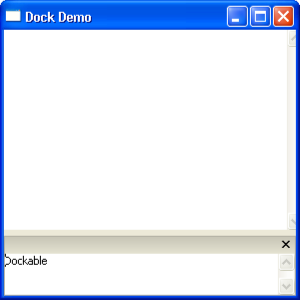
The above code produces the following output −


No comments:
Post a Comment