
The image widget is used to create and manipulate images. The syntax for creating image is as follows −
A simple example for image widget is shown below −
 The available function for image are listed below in the following table −
A simple example for using the above image widget commands is shown below −
image create type name optionsIn the above syntax type is photo or bitmap and name is the image identifier.
Options
The options available for image create are listed below in the following table −| S.No. | Syntax & Description |
|---|---|
| 1 | -file fileName The name of the image file name. |
| 2 | -height number Used to set height for widget. |
| 3 | -width number Sets the width for widget. |
| 4 | -data string Image in base 64 encoded string. |
#!/usr/bin/wish

image create photo imgobj -file "/Users/rajkumar/Desktop/F Drive/pictur/vb/Forests/
   680049.png" -width 400 -height 400
pack [label .myLabel]
.myLabel configure -image imgobj
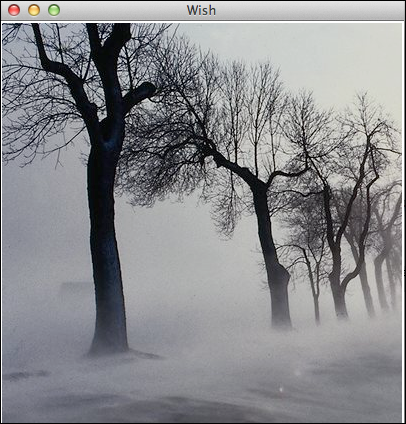
When we run the above program, we will get the following output −
The available function for image are listed below in the following table −| S.No. | Syntax & Description |
|---|---|
| 1 | image delete imageName Deletes the image from memory and related widgets visually. |
| 2 | image height imageName Returns the height for image. |
| 3 | image width imageName Returns the width for image. |
| 4 | image type imageName Returns the type for image. |
| 5 | image names Returns the list of images live in memory. |
#!/usr/bin/wish

image create photo imgobj -file "/Users/rajkumar/images/680049.png"
   -width 400 -height 400
pack [label .myLabel]
.myLabel configure -image imgobj
puts [image height imgobj]
puts [image width imgobj]
puts [image type imgobj]
puts [image names]
image delete imgobj
The image will be deleted visually and from memory once "image delete imgobj" command executes. In console, the output will be like the following −
400
400
photo
imgobj ::tk::icons::information ::tk::icons::error ::tk::icons::
warning ::tk::icons::question


No comments:
Post a Comment