Canvas is used for providing drawing areas. The syntax for canvas widget is shown below −
canvas canvasName options
Options
The options available for the canvas widget are listed below in the following table −
| S.No. |
Syntax & Description |
| 1 |
-background color
Used to set background color for widget.
|
| 2 |
-closeenough distance
Sets the closeness of mouse cursor to a displayable item. The default
is 1.0 pixel. This value may be a fraction and must be positive. |
| 3 |
-scrollregion boundingBox
The bounding box for the total area of this canvas. |
| 4 |
-height number
Used to set height for widget. |
| 5 |
-width number
Sets the width for widget. |
| 6 |
-xscrollincrement size
The amount to scroll horizontally when scrolling is requested. |
| 7 |
-yscrollincrement size
The amount to scroll vertically when scrolling is requested. |
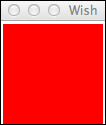
A simple example for canvas widget is shown below −
#!/usr/bin/wish

canvas .myCanvas -background red -width 100 -height 100
pack .myCanvas
When we run the above program, we will get the following output −
Widgets for Drawing in Canvas
The list of the available widgets for drawing in canvas is listed below −
| S.No. |
Widget & Description |
| 1 |
Line
Draws a line. |
| 2 |
Arc
Draws an arc. |
| 3 |
Rectangle
Draws a rectangle. |
| 4 |
Oval
Draws an oval. |
| 5 |
Polygon
Draws a polygon. |
| 6 |
Text
Draws a text. |
| 7 |
Bitmap
Draws a bitmap. |
| 8 |
Image
Draws an image. |
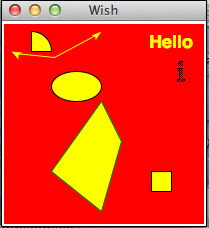
An example using different canvas widgets is shown below −
#!/usr/bin/wish

canvas .myCanvas -background red -width 200 -height 200
pack .myCanvas
.myCanvas create arc 10 10 50 50 -fill yellow
.myCanvas create line 10 30 50 50 100 10 -arrow both -fill yellow -smooth true
   -splinesteps 2
.myCanvas create oval 50 50 100 80 -fill yellow
.myCanvas create polygon 50 150 100 80 120 120 100 190 -fill yellow -outline green
.myCanvas create rectangle 150 150 170 170  -fill yellow
.myCanvas create text 170 20 -fill yellow -text "Hello" -font {Helvetica -18 bold}
.myCanvas create bitmap 180 50 -bitmap info
When we run the above program, we will get the following output −


No comments:
Post a Comment