
Amazon provides reports for the sellers about the details of their sales.
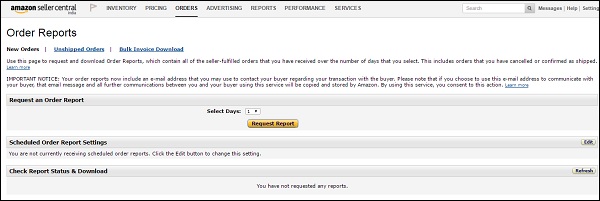
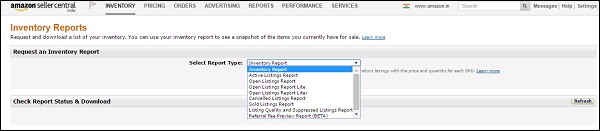
- You can find the Inventory report option in the inventory menu and an order report option in the orders menu.
- You can see the FBA items in the active listings report which includes all the active listings.
- There is also a cancelled listing report, sold listing report, listing quality and suppressed listing report which show you the quality issues related to your listing. You simply need to select the report you want to see and click the request report button. A message will flash mentioning it will take Amazon up to 45 minutes to create the complete report for you. When it is ready, download the report to see its content.
- In the order report, you can select a time period for which you want to see your orders. You can use the new orders and the unshipped orders link on the top of the page.
- If you want to see the FBA orders, use the fulfillment option on the Reports menu.
- The Payment menu option takes you to a report that shows all the information related to your sales, earnings, profits, and fees.
- The Business Report option takes you to a very complicated and highly configured reporting system that provides a report on almost everything.
- The Fulfillment option provides reports to manage your inventory, which guides you about the amount of inventory you should keep in the FBA system.
- Next, there is the Tax library which provides all tax-related documents.
- You can also view the transaction report, order payments, refunds, fees, services, and so on. Click the total value to see the entire transaction details.
- There is also an All Statements tab that leads you to your settlement reports and reports that show what Amazon charged you or paid you on any specified settlement date.
- Amazon Selling Coach Reports show you the opportunities, restocking of your inventory, popular products, etc.


No comments:
Post a Comment