
Aurelia offers i18n plugin. In this chapter we will show you how to localize your app using this plugin.
Step 1 - Install Plugin
Open command prompt window and run the following code to install i18n plugin.C:\Users\username\Desktop\aureliaApp>jspm install aurelia-i18nWe also need to install backend plugin.
C:\Users\username\Desktop\aureliaApp>jspm install npm:i18next-xhr-backend
Step 2 - Create Folders and files
In project root folder we need to create locale directory.C:\Users\username\Desktop\aureliaApp>mkdir localeIn this folder you need to add new folders for any language you want. We will create en with translation.js file inside.
C:\Users\username\Desktop\aureliaApp\locale>mkdir en
C:\Users\username\Desktop\aureliaApp\locale\en>touch translation.json
Step 3 - Using Plugin
You need to use manual bootstrapping to be able to use this plugin. Check our configuration chapter for more information. We need to add i18n plugin to main.js file.main.js
import {I18N} from 'aurelia-i18n';
import XHR from 'i18next-xhr-backend';

export function configure(aurelia) {
   aurelia.use
   .standardConfiguration()
   .developmentLogging()

   .plugin('aurelia-i18n', (instance) => {
      // register backend plugin
      instance.i18next.use(XHR);

      // adapt options to your needs (see http://i18next.com/docs/options/)
      instance.setup({
         backend: {
            loadPath: '/locales/{{lng}}/{{ns}}.json',
         },

         lng : 'de',
         attributes : ['t','i18n'],
         fallbackLng : 'en',
         debug : false
      });
   });

   aurelia.start().then(a => a.setRoot());
}
Step 4 - Translation JSON file
This is the file where you can set translation values. We will use an example from official documentation. The de-DE folder should actually be used for translating to German language, but we will use English phrases instead, for easier understanding.translation.json
{
   "score": "Score: {{score}}",
   "lives": "{{count}} life remaining",
   "lives_plural": "{{count}} lives remaining",
   "lives_indefinite": "a life remaining",
   "lives_plural_indefinite": "some lives remaining",
   "friend": "A friend",
   "friend_male": "A boyfriend",
   "friend_female": "A girlfriend"
}
Step 5 - Setting Locale
We just need to import i18n plugin and set it to use JSON code from de-DE folder.app.js
import {I18N} from 'aurelia-i18n';

export class App {
   static inject = [I18N];

   constructor(i18n) {
      this.i18n = i18n;
      this.i18n
      .setLocale('de-DE')

      .then( () => {
         console.log('Locale is ready!');
      });
   }
}
Step 6 - View
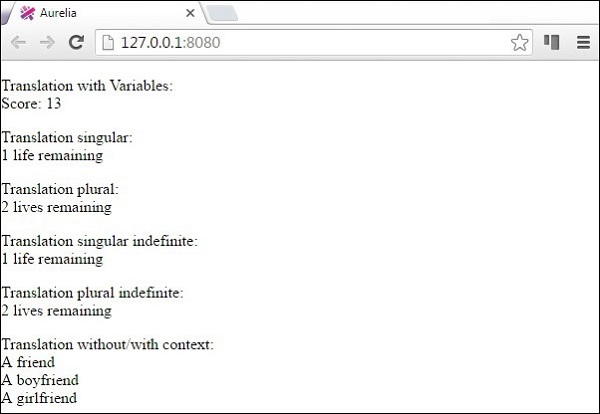
There are couple of ways to translate data. We will use a custom ValueConverter named t. You can see in example below various ways of formatting data. Compare this with translation.json file and you will notice the patterns used for formatting.<template> <p> Translation with Variables: <br /> ${ 'score' | t: {'score': 13}} </p> <p> Translation singular: <br /> ${ 'lives' | t: { 'count': 1 } } </p> <p> Translation plural: <br /> ${ 'lives' | t: { 'count': 2 } } </p> <p> Translation singular indefinite: <br /> ${ 'lives' | t: { 'count': 1, indefinite_article: true } } </p> <p> Translation plural indefinite: <br /> ${ 'lives' | t: { 'count': 2, indefinite_article: true } } </p> <p> Translation without/with context: <br /> ${ 'friend' | t } <br /> ${ 'friend' | t: { context: 'male' } } <br /> ${ 'friend' | t: { context: 'female' } } </p> </template>When we run the app, we will get the following output.


No comments:
Post a Comment