
If you need to convert some values in Aurelia app, you can use converters instead of manually converting values to desired format.
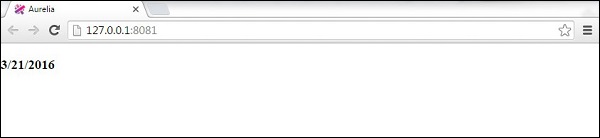
Convert Date
When we want to convert default date value to some specific format, we can use momentJS library. This is small library used for manipulating dates.C:\Users\username\Desktop\aureliaApp>jspm install momentLet's create new file converters.js. We will use this file to add converter specific code. Use the following command or create the file manually.
C:\Users\username\Desktop\aureliaApp>touch converters.js
converter.js
Inside this file we will import moment library and set DateFormatValueConverter to return only month, day and year values without additional data. Important thing to note is that Aurelia can recognize any class that ends with ValueConverter. This is why our class name is DateFormatValueConverter. This class will be registered as dateFormat and we can later use it inside view.converters.js
import moment from 'moment';

export class DateFormatValueConverter {
   toView(value) {
      return moment(value).format('M/D/YYYY');
   }
}
In app.js we will just use current date. This will be our view-model.
app.js
export class App {
   constructor() {
      this.currentDate = new Date();
   }
}
You already saw require in custom-elements chapter. The pipe symbol | is used to apply the converter. We are only using dateFormat since this is how Aurelia is registering DateFormatValueConverter.
app.html
<template>
   <require from = "./converters"></require>

   <h3>${currentDate | dateFormat}</h3>
</template>
Convert Currency
This is an example of currency formatting. You will notice that the concept is the same as in above example. First we need to install numeral library from command prompt.C:\Users\username\Desktop\aureliaApp>jspm install numeralConverter will set currency format.
converters.js
import numeral from 'numeral';

export class CurrencyFormatValueConverter {
   toView(value) {
      return numeral(value).format('($0,0.00)');
   }
}
View-model will just generate random number. We will use this as currency value and update it every second.
app.js
export class App {
   constructor() {
      this.update();
      setInterval(() => this.update(), 1000);
   }

   update() {
      this.myCurrency = Math.random() * 1000;
   }
}
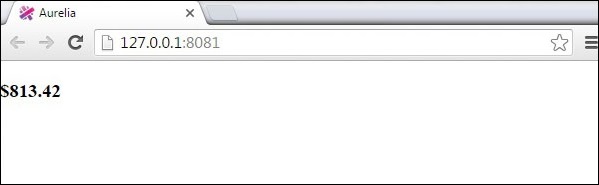
Our view will show the randomly generated number transformed as a currency.
app.html
<template>
   <require from = "./converters"></require>

   <h3>${myCurrency | currencyFormat}</h3>
</template>


No comments:
Post a Comment