
The phpMyAdmin is a third-party tool to manage tables and data inside
a database. It is graphical user interface to manage MySQL databases.
You can manually create Tables, Import and Export data or edit the
values of a row through it.
To access phpMyAdmin, click on the phpMyAdmin link, which can be found under the databases section of cPanel Home.
 You will see a dashboard similar to this.
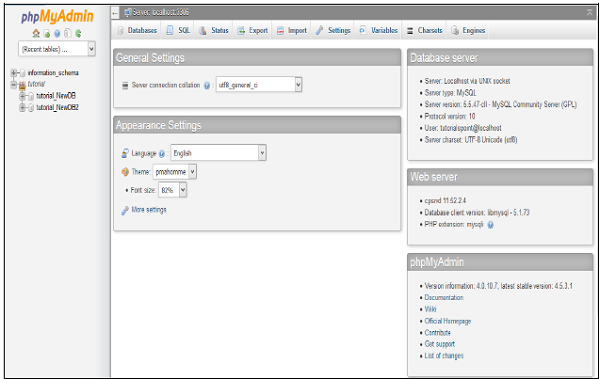 On the left hand pane, there is a list of databases, which can be
expended to see the table in each database. On the right hand pane,
there is general information of Database server.
On the left hand pane, there is a list of databases, which can be
expended to see the table in each database. On the right hand pane,
there is general information of Database server.
Step 1 − Select the database from left pane by clicking over the name of the database. Once the database is selected, it will show you the structure of the database.
Step 2 − Click on SQL from top bar to open SQL editor.
 Step 3 − Write your query into the SQL editor. You can also enter multiple queries, separated by semicolon (;).
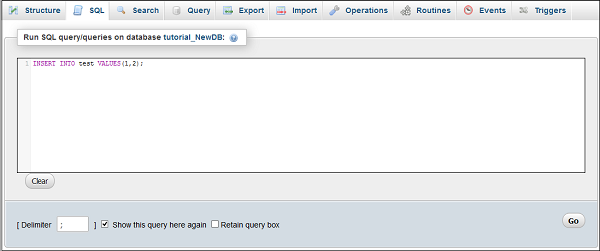 Step 4 − Click Go button to execute the query. If the query is executed successfully, you will get a success message.
To access phpMyAdmin, click on the phpMyAdmin link, which can be found under the databases section of cPanel Home.
You will see a dashboard similar to this.
On the left hand pane, there is a list of databases, which can be
expended to see the table in each database. On the right hand pane,
there is general information of Database server.Execute an SQL Query
To execute an SQL Query on a database, we will need to perform the following steps −Step 1 − Select the database from left pane by clicking over the name of the database. Once the database is selected, it will show you the structure of the database.
Step 2 − Click on SQL from top bar to open SQL editor.
Step 3 − Write your query into the SQL editor. You can also enter multiple queries, separated by semicolon (;).
Step 4 − Click Go button to execute the query. If the query is executed successfully, you will get a success message.

No comments:
Post a Comment