পৃষ্ঠাসমূহ

Search Your Article

CS


Welcome to GoogleDG – your one-stop destination for free learning resources, guides, and digital tools.

At GoogleDG, we believe that knowledge should be accessible to everyone. Our mission is to provide readers with valuable ebooks, tutorials, and tech-related content that makes learning easier, faster, and more enjoyable.

What We Offer:

  • 📘 Free & Helpful Ebooks – covering education, technology, self-development, and more.

  • 💻 Step-by-Step Tutorials – practical guides on digital tools, apps, and software.

  • 🌐 Tech Updates & Tips – simplified information to keep you informed in the fast-changing digital world.

  • 🎯 Learning Support – resources designed to support students, professionals, and lifelong learners.

    Latest world News 


Our Vision

To create a digital knowledge hub where anyone, from beginners to advanced learners, can find trustworthy resources and grow their skills.

Why Choose Us?

✔ Simple explanations of complex topics
✔ 100% free access to resources
✔ Regularly updated content
✔ A community that values knowledge sharing

We are continuously working to expand our content library and provide readers with the most useful and relevant digital learning materials.

📩 If you’d like to connect, share feedback, or suggest topics, feel free to reach us through the Contact page.

Pageviews

Wednesday, February 15, 2017

cPanel - Remote MySQL

This feature of cPanel allows remote servers or web application to access a database hosted on your account. If a server or web application tries to access the database on your account, which is not provided access to, then cPanel will not allow this host to access your database.
But, if you have an application, whom you wish to grant access to your databases, you can add their host names or IP address here.
To access this interface, click on Remote MySQL link found in your Database Section of your cPanel.

MySQL Link

Add Access Host

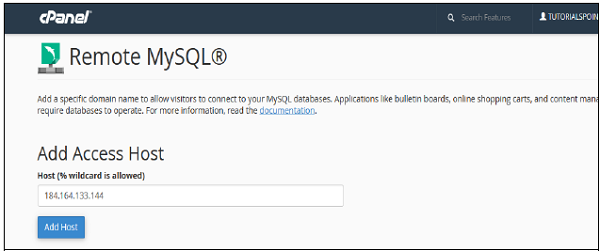
To Add Access Host, which can access your databases when needed. You will have to enter Host Name in text input. You can enter hostnames in three types.
Add Access Host
  • You can use Domain Name, E.g. www.tutorialspoint.com
  • You can use IP address, E.g. 184.168.144.133
  • You can use wildcard %, E.g. %.tutorialspoint.com or 184.164.144.%
Click on Add Host to add an access host.

Remove Access Host

To deny access to a web application having access to the databases, click the Delete link from the list of Access host.
Remove Access Host

No comments:

Post a Comment