
This class is also inherited from the gtk.Misc class. The object of the gtk.Image class displays an image. Usually, the image is to be loaded from a file in a pixel buffer representing gtk.gdk.Pixbuf class. Instead a convenience function set_from_file() is commonly used to display image data from file in a gk.Image widget.
The easiest way to create the gtk.Image object is to use the following constructor −
The easiest way to create the gtk.Image object is to use the following constructor −
img = gtk.Image()The following are the methods of the gtk.Image class −
- Image.set_from_file() − This sets the image data from the contents of the file.
- Image.set_from_pixbuf() − This sets the image data from pixmap in which the image data is loaded for offscreen manipulation.
- Image.set_from_pixbuf() − This sets the image data using pixbuf which is an object containing the data that describes an image using client side resources.
- Image.set_from_stock() − This sets the image data from the stock item identified by stock_id.
- Image.clear() − This removes the current image.
- Image.set_from_image() − This sets the image data from a client-side image buffer in the pixel format of the current display. If the image is None, the current image data will be removed.
Example
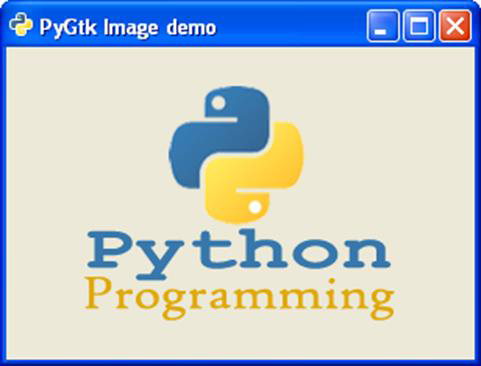
In the following program, the gtk.Image object is obtained from an image file. It is further added in the toplevel window.import gtk class PyApp(gtk.Window): def __init__(self): super(PyApp, self).__init__() self.set_title("PyGtk Image demo") self.set_size_request(300, 200) self.set_position(gtk.WIN_POS_CENTER) image1 = gtk.Image() image1.set_from_file("python.png") self.add(image1) self.connect("destroy", gtk.main_quit) self.show_all() PyApp() gtk.main()The above code will generate the following output −


No comments:
Post a Comment