
cPanel supports GnuPG or GNU Privacy Guard, which is an open-source
software to encrypt and decrypt messages using cryptographic algorithms.
GnuPG uses a public and private key infrastructure to implement this
feature.
When the sender sends a message, he encodes it with a public key of the recipient. The recipient after receiving the message, decrypts the message with his private key, which is available in the server. This feature helps in sending emails with sensitive information, as without a private key, it’s nearly impossible to decode the message.
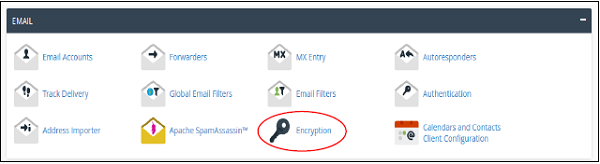
Step 1 − Open cPanel Email Encryption by clicking on Encryption in the Email section of the cPanel Link.
 Step 2 − In create a New Key interface, Enter Your name and Email.
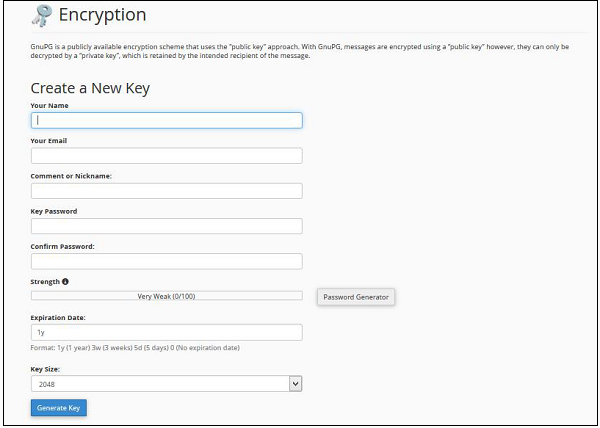 Step 3 − Enter comment or nick name; you can use this to distinguish between multiple keys.
Step 4 − Enter Strong Key Password and Set Expiration Date. Expiration date can be set like
Step 6 − Click Generate Key; it will take a few minutes to generate your key.
To import a GnuPG key, follow these steps −
Step 1 − Scroll down to find Import Key in Encryption Interface.
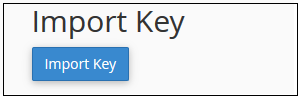 Step 2 − Click on the Import Key Button. You will be taken to a new interface.
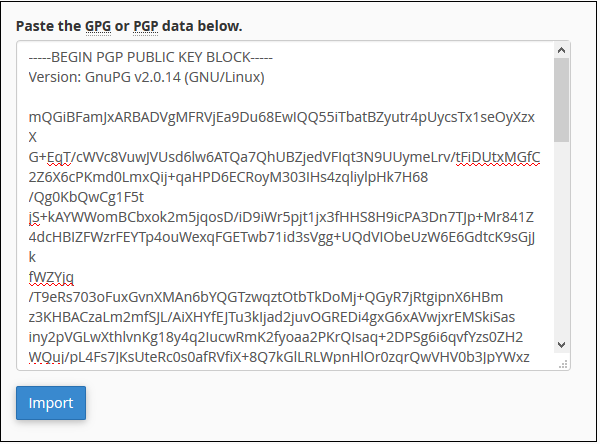 Step 3 − Paste your Public key in the text box; make sure it includes both the header and footer rows.
Step 4 − Click the Import button to import the key.
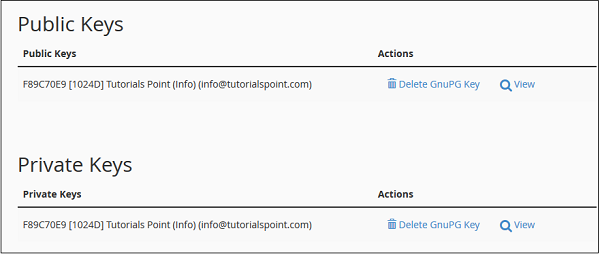 Step 2 − To view a key, click View corresponding to the Key you want to view.
Step 3 − To delete a key, click Delete GnuPG key, it will ask for confirmation, click yes to delete the key.
When the sender sends a message, he encodes it with a public key of the recipient. The recipient after receiving the message, decrypts the message with his private key, which is available in the server. This feature helps in sending emails with sensitive information, as without a private key, it’s nearly impossible to decode the message.
Create a GnuPG Key
To create a GnuPG key, follow these steps −Step 1 − Open cPanel Email Encryption by clicking on Encryption in the Email section of the cPanel Link.
Step 2 − In create a New Key interface, Enter Your name and Email.
Step 3 − Enter comment or nick name; you can use this to distinguish between multiple keys.Step 4 − Enter Strong Key Password and Set Expiration Date. Expiration date can be set like
- y for year, e.g. 1y for 1 year
- w for weeks, e.g. 2w for 2 weeks
- d for days, e.g. 4d for 4 days
Step 6 − Click Generate Key; it will take a few minutes to generate your key.
Import a Key
If you already have a key pair in your local computer, then you can import them to your cPanel. You can only import the Public Key.To import a GnuPG key, follow these steps −
Step 1 − Scroll down to find Import Key in Encryption Interface.
Step 2 − Click on the Import Key Button. You will be taken to a new interface.
Step 3 − Paste your Public key in the text box; make sure it includes both the header and footer rows.Step 4 − Click the Import button to import the key.
Delete or View the Key
Step 1 − Scroll down in Encryption Interface to find the list of keys.
Step 2 − To view a key, click View corresponding to the Key you want to view.Step 3 − To delete a key, click Delete GnuPG key, it will ask for confirmation, click yes to delete the key.


No comments:
Post a Comment