
Email filters are useful to create rules to block unwanted emails,
based on certain rules you choose. You can specify some rules like a
message containing a specific word should be deleted or passed to a
specific program.
These filters work subsequently, for example if a mail passes through a filter, but can be blocked by another filter. You can specify multiple rules in one filter too.
There are two types of Email Filters in cPanel − User Level Filter and Account Level Filter.
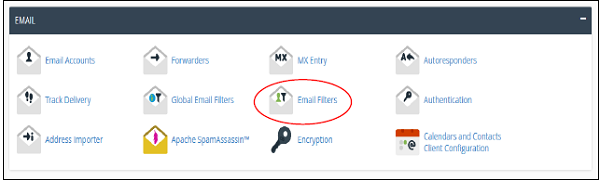
Step 1 − Open user level email filters by clicking on Email Filter found under Email section of cPanel.
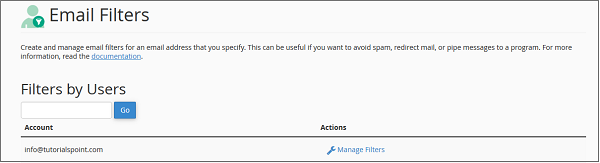
 Step 2 − In Email Filters, you will see the list of emails
associated with your domain. Click on Manage Filter link corresponding
to your email on which you want to create a filter.
Step 2 − In Email Filters, you will see the list of emails
associated with your domain. Click on Manage Filter link corresponding
to your email on which you want to create a filter.
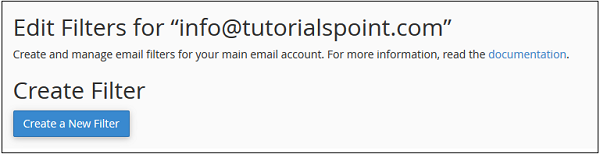
 Step 3 − Click on Create New Filter button to go to a new filter creation interface.
 Step 4 − Provide a name for your filter.
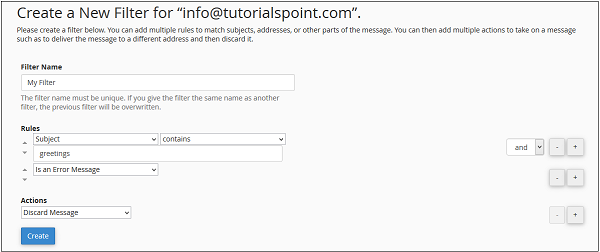 Step 5 − Select rules for filtering your message. To add
additional rules, click on Add (+) button on right side, to remove rules
click Subtract (–). Also choose ‘and’ or ‘or’ rule.
Step 5 − Select rules for filtering your message. To add
additional rules, click on Add (+) button on right side, to remove rules
click Subtract (–). Also choose ‘and’ or ‘or’ rule.
Step 6 − Select an Action for a message those passes to the rules of filter. To add additional rules, click on Add (+) button on right side, to remove rules click Subtract (–).
Step 7 − Click on Create button to create a filter.
Step 1 − Return to Email Filter Interface.
Step 2 − Choose the email for which you want to edit or delete the Filter from Current Filters.
 Step 3 −
Step 1 − Return to Email Filters Interface and Click on the Manage link corresponding to email address of which you want to test filter.
Step 2 − Scroll down to find Filter Test.
Step 3 − Enter complete Email with headers and subjects in Filter Email text input.
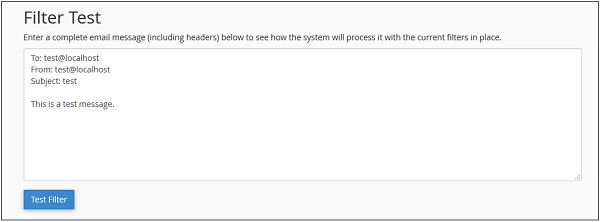 Step 4 − Press Test Filter and the system will generate a full report of how the filters will respond to the email you have written.
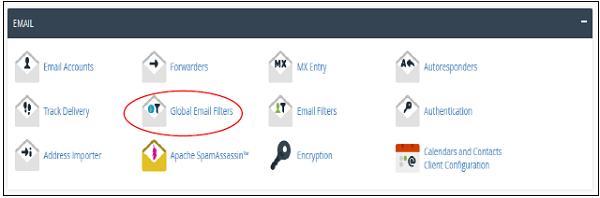
To Create and Manage Global Email Filter click on Global Email Filter found under Email section of cPanel Home.
 Process to Create, Manage and Test a Global Email Filter is same as
we studied above in User Level Filtering. Only difference is that you
will not find a list of Emails to choose to Manage, but you will get a
list of all Global Email Filters.
Process to Create, Manage and Test a Global Email Filter is same as
we studied above in User Level Filtering. Only difference is that you
will not find a list of Emails to choose to Manage, but you will get a
list of all Global Email Filters.
These filters work subsequently, for example if a mail passes through a filter, but can be blocked by another filter. You can specify multiple rules in one filter too.
There are two types of Email Filters in cPanel − User Level Filter and Account Level Filter.
User Level Filter
Through this user level filter, you can create email filters, which will apply on emails that will be received by that email address.Create a User Level Filter
To create a user level email filter, follow these steps −Step 1 − Open user level email filters by clicking on Email Filter found under Email section of cPanel.
Step 2 − In Email Filters, you will see the list of emails
associated with your domain. Click on Manage Filter link corresponding
to your email on which you want to create a filter.
Step 3 − Click on Create New Filter button to go to a new filter creation interface.
Step 4 − Provide a name for your filter.
Step 5 − Select rules for filtering your message. To add
additional rules, click on Add (+) button on right side, to remove rules
click Subtract (–). Also choose ‘and’ or ‘or’ rule.Step 6 − Select an Action for a message those passes to the rules of filter. To add additional rules, click on Add (+) button on right side, to remove rules click Subtract (–).
Step 7 − Click on Create button to create a filter.
Edit or Delete a User Level Filter
To edit or delete a user level filter −Step 1 − Return to Email Filter Interface.
Step 2 − Choose the email for which you want to edit or delete the Filter from Current Filters.
Step 3 −- To Edit, click Edit Link and you will be taken to the same interface we went through to create an Email Filter. Click Save to Save the Email Filter.
- To Delete the Email Filter, click on Delete link and you will be asked for confirmation. Click Delete to delete an Email Filter.
Testing an Email Filter
To test the filter, you can follow these steps −Step 1 − Return to Email Filters Interface and Click on the Manage link corresponding to email address of which you want to test filter.
Step 2 − Scroll down to find Filter Test.
Step 3 − Enter complete Email with headers and subjects in Filter Email text input.
Step 4 − Press Test Filter and the system will generate a full report of how the filters will respond to the email you have written.Account Level Filtering
The only difference in User Level Filtering and Account Level Filtering (or Global Email Filtering) is that the filters used in Account Level Filter will filter all emails received in your domain, no matter to which email address the message was sent.To Create and Manage Global Email Filter click on Global Email Filter found under Email section of cPanel Home.
Process to Create, Manage and Test a Global Email Filter is same as
we studied above in User Level Filtering. Only difference is that you
will not find a list of Emails to choose to Manage, but you will get a
list of all Global Email Filters.

No comments:
Post a Comment