
In this interface of cPanel, you are allowed to change the system
email address. It is the email address on which the system can notify
you for important updates. You cannot use your system email address or
any email address, which is connected with your domain, so that you do
not lose any important update, when the system is down.
To update your contact email, follow these steps −
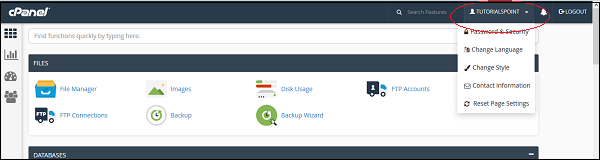
Step 1 − In cPanel Home, click username on the right corner of your dashboard.
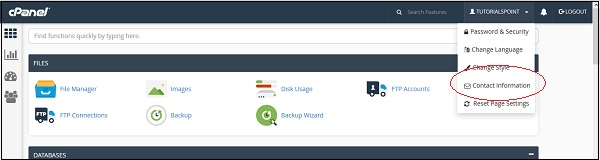
 Step 2 − Click on Contact Information option. You will find Contact Information Interface.
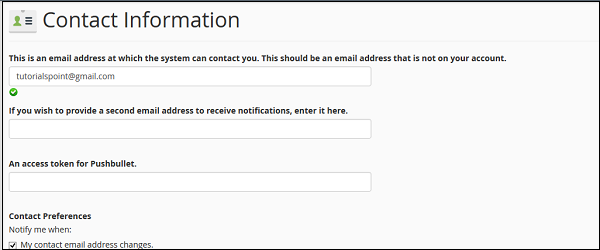 Step 3 − Enter the email address on which you want the system to contact you for important notifications.
Step 4 − You can enter a second email address on which you can receive the copy of that email sent on your primary email.
Step 5 − You can choose the options of an event on which the system should send you notification in contact preference. It is recommended that you leave every checkbox selected.
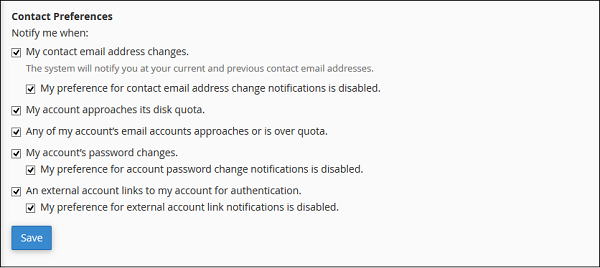 Step 6 − Click the Save button to save your contact preference.
To update your contact email, follow these steps −
Step 1 − In cPanel Home, click username on the right corner of your dashboard.
Step 2 − Click on Contact Information option. You will find Contact Information Interface.
Step 3 − Enter the email address on which you want the system to contact you for important notifications.Step 4 − You can enter a second email address on which you can receive the copy of that email sent on your primary email.
Step 5 − You can choose the options of an event on which the system should send you notification in contact preference. It is recommended that you leave every checkbox selected.
Step 6 − Click the Save button to save your contact preference.

No comments:
Post a Comment