
This chapter explains how to set different fonts, apply styles, and
display text in different angles of direction in an Excel spreadsheet.
Every system comes bundled with a huge collection of fonts such as Arial, Impact, Times New Roman, etc. The collection can also be updated with new fonts, if required. Similarly there are various styles in which a font can be displayed, for example, bold, italic, underline, strike through, etc.
Every system comes bundled with a huge collection of fonts such as Arial, Impact, Times New Roman, etc. The collection can also be updated with new fonts, if required. Similarly there are various styles in which a font can be displayed, for example, bold, italic, underline, strike through, etc.
Fonts and Font Styles
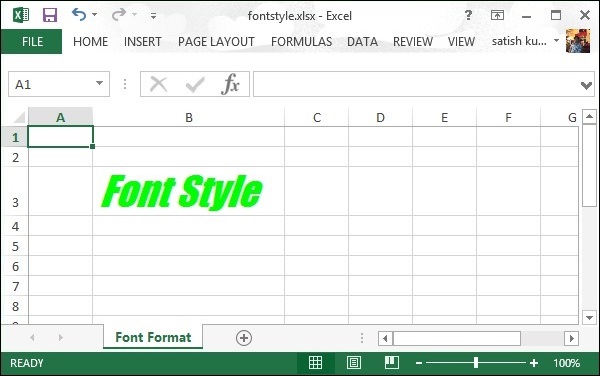
The following code is used to apply a particular font and style to the contents of a cell.import java.io.File; import java.io.FileOutputStream; import org.apache.poi.hssf.util.HSSFColor; import org.apache.poi.xssf.usermodel.XSSFCell; import org.apache.poi.xssf.usermodel.XSSFCellStyle; import org.apache.poi.xssf.usermodel.XSSFFont; import org.apache.poi.xssf.usermodel.XSSFRow; import org.apache.poi.xssf.usermodel.XSSFSheet; import org.apache.poi.xssf.usermodel.XSSFWorkbook; public class FontStyle { public static void main(String[] args)throws Exception { XSSFWorkbook workbook = new XSSFWorkbook(); XSSFSheet spreadsheet = workbook.createSheet("Fontstyle"); XSSFRow row = spreadsheet.createRow(2); //Create a new font and alter it. XSSFFont font = workbook.createFont(); font.setFontHeightInPoints((short) 30); font.setFontName("IMPACT"); font.setItalic(true); font.setColor(HSSFColor.BRIGHT_GREEN.index); //Set font into style XSSFCellStyle style = workbook.createCellStyle(); style.setFont(font); // Create a cell with a value and set style to it. XSSFCell cell = row.createCell(1); cell.setCellValue("Font Style"); cell.setCellStyle(style); FileOutputStream out = new FileOutputStream( new File("fontstyle.xlsx")); workbook.write(out); out.close(); System.out.println( "fontstyle.xlsx written successfully"); } }Let us save the above code in a file named FontStyle.java. Compile and execute it from the command prompt as follows.
$javac FontStyle.java
$java FontStyle
It generates an Excel file named fontstyle.xlsx in your current directory and display the following output on the command prompt.
fontstyle.xlsx written successfullyThe fontstyle.xlsx file looks as follows.
Text Direction
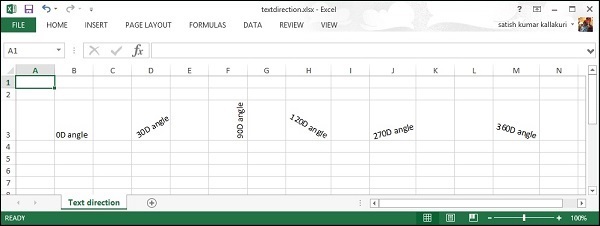
Here you can learn how to set the text direction in different angles. Usually cell contents are displayed horizontally, from left to right, and at 00 angle; however you can use the following code to rotate the text direction, if required.import java.io.File; import java.io.FileOutputStream; import org.apache.poi.xssf.usermodel.XSSFCell; import org.apache.poi.xssf.usermodel.XSSFCellStyle; import org.apache.poi.xssf.usermodel.XSSFRow; import org.apache.poi.xssf.usermodel.XSSFSheet; import org.apache.poi.xssf.usermodel.XSSFWorkbook; public class TextDirection { public static void main(String[] args)throws Exception { XSSFWorkbook workbook = new XSSFWorkbook(); XSSFSheet spreadsheet = workbook.createSheet( "Text direction"); XSSFRow row = spreadsheet.createRow(2); XSSFCellStyle myStyle = workbook.createCellStyle(); myStyle.setRotation((short) 0); XSSFCell cell = row.createCell(1); cell.setCellValue("0D angle"); cell.setCellStyle(myStyle); //30 degrees myStyle=workbook.createCellStyle(); myStyle.setRotation((short) 30); cell = row.createCell(3); cell.setCellValue("30D angle"); cell.setCellStyle(myStyle); //90 degrees myStyle=workbook.createCellStyle(); myStyle.setRotation((short) 90); cell = row.createCell(5); cell.setCellValue("90D angle"); cell.setCellStyle(myStyle); //120 degrees myStyle=workbook.createCellStyle(); myStyle.setRotation((short) 120); cell = row.createCell(7); cell.setCellValue("120D angle"); cell.setCellStyle(myStyle); //270 degrees myStyle = workbook.createCellStyle(); myStyle.setRotation((short) 270); cell = row.createCell(9); cell.setCellValue("270D angle"); cell.setCellStyle(myStyle); //360 degrees myStyle=workbook.createCellStyle(); myStyle.setRotation((short) 360); cell = row.createCell(12); cell.setCellValue("360D angle"); cell.setCellStyle(myStyle); FileOutputStream out = new FileOutputStream( new File("textdirection.xlsx")); workbook.write(out); out.close(); System.out.println( "textdirection.xlsx written successfully"); } }Keep the above code in TextDirectin.java file, then compile and execute it from the command prompt as follows.
$javac TextDirection.java
$java TextDirection
It will compile and execute to generate an Excel file named textdirection.xlsx in your current directory and display the following output on the command prompt.
textdirection.xlsx written successfullyThe textdirection.xlsx file looks as follows.


No comments:
Post a Comment