
GDI+ (Graphics Drawing Interface), CoreGraphics and Cairo libraries
form the framework of drawing API in wxPython. wx.GraphicsContext is
the primary drawable object, using which various Device Context objects
are created.
wx.DC is an abstract class. Its derived classes are used to render graphics and text on different devices. The Device Context classes are −
Predefined Pen objects are −
Predefined Pen styles are −
A custom Brush object requires wx.Colour and Brush style parameters. The following is a list of predefined brush styles −
wxPython has a number of functions that facilitate drawing different shapes, text and image.
The complete code is as follows −
wx.DC is an abstract class. Its derived classes are used to render graphics and text on different devices. The Device Context classes are −
- wx.ScreenDC − Use this to paint on the screen, as opposed to an individual window.
- wx.ClientDC − Use this to paint on the client area of the window (the part without borders and other decorations), but do not use it from within an wxPaintEvent.
- wx.PaintDC − Use this to paint on the client area of the window, but only from within a wxPaintEvent.
- wx.WindowDC − Use this to paint on the whole area of the window, including decorations. This may not be available on non-Windows platforms.
wx.Colour Class
Colour object represents combination of RGB (RED, Green and Blue) intensity values, each on the scale of 0-255. There are a few predefined colour objects like −- wxBLACK
- wxBLUE
- wxCYAN
- wxGREEN
- wxYELLOW
- wxLIGHT_GREY
- wxRED
- wxWHITE
wx.Colour(r,g,b)
wx.Pen Class
Pen object determines the colour, width and style of the shape of graphics like line, rectangle, circle etc.Predefined Pen objects are −
| wxBLACK_DASHED_PEN |
| wxBLACK_PEN |
| wxBLUE_PEN |
| wxCYAN_PEN |
| wxGREEN_PEN |
| wxYELLOW_PEN |
| wxGREY_PEN |
| wxLIGHT_GREY_PEN |
| wxMEDIUM_GREY_PEN |
| wxRED_PEN |
| wxTRANSPARENT_PEN |
| wxWHITE_PEN |
| wx.SOLID |
| wx.DOT |
| wx.LONG_DASH |
| wx.SHORT_DASH |
| wx.DOT_DASH |
| wx.TRANSPARENT |
wx.Brush Class
Brush is another elementary graphics object required to fill the backgrounds of shapes such as rectangle, ellipse, circle etc.A custom Brush object requires wx.Colour and Brush style parameters. The following is a list of predefined brush styles −
| wx.SOLID |
| wx.STIPPLE |
| wx.BDIAGONAL_HATCH |
| wx.CROSSDIAG_HATCH |
| wx.FDIAGONAL_HATCH |
| wx.CROSS_HATCH |
| wx.HORIZONTAL_HATCH |
| wx.VERTICAL_HATCH |
| wx.TRANSPARENT |
| S.N. | Functions & Description |
|---|---|
| 1 | DrawRectangle() Draws a rectangle of given dimensions |
| 2 | DrawCircle() Draws a circle at the given point as center and radius |
| 3 | DrawEllipse() Draws an ellipse with the given x and y radius |
| 4 | DrawLine() Draws a line beween two wx.Point objects |
| 5 | DrawBitmap() Draw an image at the given position |
| 6 | DrawText() Displays the given text at the specified position |
Example
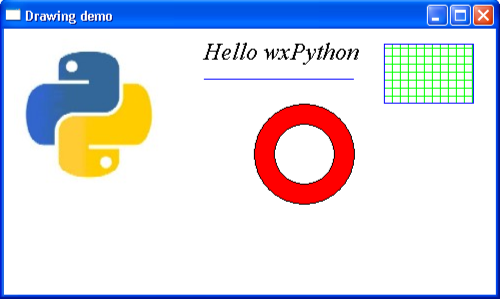
The above functions are implemented in the following example, making use of Pen, Brush, Colour and Font objects.The complete code is as follows −
import wx

class Mywin(wx.Frame):

   def __init__(self, parent, title):
      super(Mywin, self).__init__(parent, title = title,size = (500,300))
      self.InitUI()

   def InitUI(self):
      self.Bind(wx.EVT_PAINT, self.OnPaint)
      self.Centre()
      self.Show(True)

   def OnPaint(self, e):
      dc = wx.PaintDC(self)
      brush = wx.Brush("white")
      dc.SetBackground(brush)
      dc.Clear()

      dc.DrawBitmap(wx.Bitmap("python.jpg"),10,10,True)
      color = wx.Colour(255,0,0)
      b = wx.Brush(color)

      dc.SetBrush(b)
      dc.DrawCircle(300,125,50)
      dc.SetBrush(wx.Brush(wx.Colour(255,255,255)))
      dc.DrawCircle(300,125,30)

      font = wx.Font(18, wx.ROMAN, wx.ITALIC, wx.NORMAL)
      dc.SetFont(font)
      dc.DrawText("Hello wxPython",200,10)

      pen = wx.Pen(wx.Colour(0,0,255))
      dc.SetPen(pen)
      dc.DrawLine(200,50,350,50)
      dc.SetBrush(wx.Brush(wx.Colour(0,255,0), wx.CROSS_HATCH))
      dc.DrawRectangle(380, 15, 90, 60)

ex = wx.App()
Mywin(None,'Drawing demo')
ex.MainLoop()
The above code produces the following output −


No comments:
Post a Comment