
Provision of drag and drop is very intuitive for the user. It
is found in many desktop applications where the user can copy or move
objects from one window to another just by dragging it with the mouse
and dropping on another window.
Drag and drop operation involves the following steps −
Source Data that the user is dragging is placed on the the target object. OnDropText() of target object consumes the data. If so desired, data from the source object can be deleted.
Drag operation is initialized by the event binder.
Drag and drop operation involves the following steps −
- Declare a drop target
- Create data object
- Create wx.DropSource
- Execute drag operation
- Cancel or accept drop
- wx.TextDropTarget
- wx.FileDropTarget
Source Data that the user is dragging is placed on the the target object. OnDropText() of target object consumes the data. If so desired, data from the source object can be deleted.
Example
In the following example, two ListCrl objects are placed horizontally in a Box Sizer. List on the left is populated with a languages[] data. It is designated as the source of drag. One on the right is the target.languages = ['C', 'C++', 'Java', 'Python', 'Perl', 'JavaScript', 'PHP', 'VB.NET','C#'] self.lst1 = wx.ListCtrl(panel, -1, style = wx.LC_LIST) self.lst2 = wx.ListCtrl(panel, -1, style = wx.LC_LIST) for lang in languages: self.lst1.InsertStringItem(0,lang)The second list control is empty and is an argument for object of TextDropTarget class.
class MyTextDropTarget(wx.TextDropTarget):
   def __init__(self, object):
      wx.TextDropTarget.__init__(self)
      self.object = object

   def OnDropText(self, x, y, data):
      self.object.InsertStringItem(0, data)
OnDropText() method adds source data in the target list control.
Drag operation is initialized by the event binder.
wx.EVT_LIST_BEGIN_DRAG(self, self.lst1.GetId(), self.OnDragInit)OnDragInit() function puts drag data on the target and deletes from the source.
def OnDragInit(self, event):
   text = self.lst1.GetItemText(event.GetIndex())
   tobj = wx.PyTextDataObject(text)
   src = wx.DropSource(self.lst1)
   src.SetData(tobj)
   src.DoDragDrop(True)
   self.lst1.DeleteItem(event.GetIndex())
The complete code is as follows −
import wx

class MyTarget(wx.TextDropTarget):
   def __init__(self, object):
      wx.TextDropTarget.__init__(self)
      self.object = object

   def OnDropText(self, x, y, data):
      self.object.InsertStringItem(0, data)

class Mywin(wx.Frame):

   def __init__(self, parent, title):
      super(Mywin, self).__init__(parent, title = title,size = (-1,300))
      panel = wx.Panel(self)
      box = wx.BoxSizer(wx.HORIZONTAL)
      languages = ['C', 'C++', 'Java', 'Python', 'Perl', 'JavaScript',
         'PHP', 'VB.NET','C#']

      self.lst1 = wx.ListCtrl(panel, -1, style = wx.LC_LIST)
      self.lst2 = wx.ListCtrl(panel, -1, style = wx.LC_LIST)
      for lang in languages:
      self.lst1.InsertStringItem(0,lang)

      dt = MyTarget(self.lst2)
      self.lst2.SetDropTarget(dt)
      wx.EVT_LIST_BEGIN_DRAG(self, self.lst1.GetId(), self.OnDragInit)

      box.Add(self.lst1,0,wx.EXPAND)
      box.Add(self.lst2, 1, wx.EXPAND)

      panel.SetSizer(box)
      panel.Fit()
      self.Centre()
      self.Show(True)

   def OnDragInit(self, event):
      text = self.lst1.GetItemText(event.GetIndex())
      tobj = wx.PyTextDataObject(text)
      src = wx.DropSource(self.lst1)
      src.SetData(tobj)
      src.DoDragDrop(True)
      self.lst1.DeleteItem(event.GetIndex())

ex = wx.App()
Mywin(None,'Drag&Drop Demo')
ex.MainLoop()
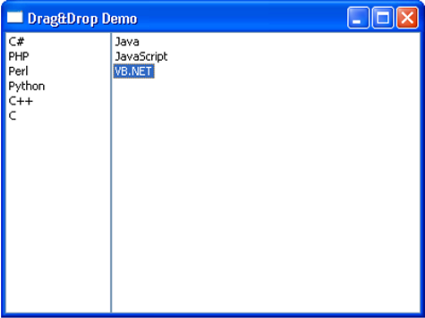
The above code produces the following output −


No comments:
Post a Comment