
Notebook widget is a tabbed container. Each tab in this container
holds a different page and the pages are seen in overlapped manner. Any
desired page is made visible by clicking on the label of the tab. The
labels can be configured to be displayed on top or bottom or to the left
or right. A container widget with other widgets placed in it or a
single widget is placed under each page.
If data to be displayed is too big in one view, it is grouped in different pages, each placed under one tab of a Notebook widget. This type of control is very widely used. Internet browser for instance, uses this tabbed display for rendering different pages in different tabs.
The following is a constructor of the gtk.Notebook class −
Observe the code −
If data to be displayed is too big in one view, it is grouped in different pages, each placed under one tab of a Notebook widget. This type of control is very widely used. Internet browser for instance, uses this tabbed display for rendering different pages in different tabs.
The following is a constructor of the gtk.Notebook class −
gtk.Notebook()The following are the frequently used methods of the gtk.Notebook class −
- append_page(child, label) − This appends a page to the notebook containing a widget specified by tab_label as the label on the tab. If tab_label can be None to use a default label.
- insert_page(child, label, position) − This inserts a page into the notebook at the location specified by position.
- remove_page(index) − This removes a page at the specified index.
- get_current_page() − This returns the page index of the current page.
- set_current_page(index) − This switches to the page number specified by the index.
- set_show_tabs() − If false, tabs will not be visible. This is True by default.
- set_tab_pos(pos) − This sets the edge at which the tabs for switching pages in the notebook are drawn. The predefined constants are −
- gtk.POS_LEFT
- gtk.POS_RIGHT
- gtk.POS_TOP
- gtk.POS_BOTTOM
- set_tab_label_text(child, text) − This creates a new label with the text specified and sets it as the tab label for the page containing child.
| change-current-page | This is emitted when the page forward or page backward request is issued |
| focus-tab | This is emitted when the focus is changed by tabbing. |
| page-added | This is emitted when a page is added to the notebook. |
| page-removed | This is emitted after a page is removed from the notebook. |
| select-page | This is emitted when a new child page is selected. |
| switch-page | This is emitted when the notebook page is changed. |
Example
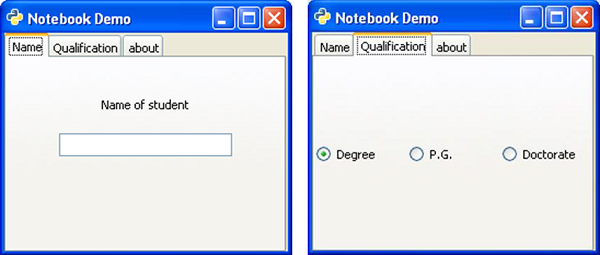
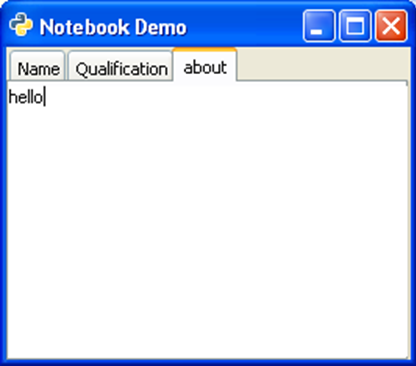
In the following example, a gtk.Notebook with three pages is placed in a toplevel gtk.Window. The first page holds a VBox in which a label and Entry field is packed. The second page labelled 'qualifications' has a HButtonBox in which three mutually exclusive RadioButton widgets are added. The third page has a TextView object. The page labels are displayed at top.Observe the code −
import gtk
class PyApp(gtk.Window):
   def __init__(self):
      super(PyApp, self).__init__()
      self.set_title("Notebook Demo")
      self.set_default_size(250, 200)

      nb = gtk.Notebook()
      nb.set_tab_pos(gtk.POS_TOP)
      vbox = gtk.VBox(False, 5)

      vb = gtk.VBox()
      hbox = gtk.HBox(True, 3)

      valign = gtk.Alignment(0.5,0.25, 0, 0)
      lbl = gtk.Label("Name of student")

      vb.pack_start(lbl, True, True, 10)
      text = gtk.Entry()

      vb.pack_start(text, True, True, 10)
      valign.add(vb)

      vbox.pack_start(valign)
      nb.append_page(vbox)
      nb.set_tab_label_text(vbox, "Name")
      hb = gtk.HButtonBox()

      btn1 = gtk.RadioButton(None,"Degree")
      hb.add(btn1)

      btn2 = gtk.RadioButton(btn1,"P.G.")
      hb.add(btn2)

      btn3 = gtk.RadioButton(btn1,"Doctorate")
      hb.add(btn3)

      nb.append_page(hb)
      nb.set_tab_label_text(hb, "Qualification")

      tv = gtk.TextView()
      nb.append_page(tv)
      nb.set_tab_label_text(tv, "about")

      self.add(nb)
      self.connect("destroy", gtk.main_quit)
      self.show_all()
      if __name__ == '__main__':
PyApp()
gtk.main()
Upon execution, the above code displays a Notebook with three pages −


No comments:
Post a Comment