
Frame class is a subclass of the gtk.Bin class. It draws a decorative
border around the child widget placed in it. The frame may contain a
label whose position may be customized.
A gtk.Frame object is constructed with the help of the following constructor −
A gtk.Frame object is constructed with the help of the following constructor −
frame = gtk.Frame(label = None)The following are the methods of the gtk.Frame() class −
- set_label(text) − This sets the label as specified by text. If None, the current label is removed.
- set_label_widget() − This sets a widget other than gtk.Label as label for frame.
- set_label_align(x, y) − This sets the alignment of the frame's label widget and decoration (defaults are 0.0 and 0.5)
- set_shadow_type() − This sets the frame's shadow type.
- gtk.SHADOW_NONE
- gtk.SHADOW_IN
- gtk.SHADOW_OUT
- gtk.SHADOW_ETCHED_IN
- tk.SHADOW_ETCHED_OUT
btn1 = gtk.RadioButton(None,"Degree")
btn2 = gtk.RadioButton(btn1,"P.G.")
btn3 = gtk.RadioButton(btn1,"Doctorate")
hb = gtk.HButtonBox()
hb.add(btn1)
hb.add(btn2)
hb.add(btn3)
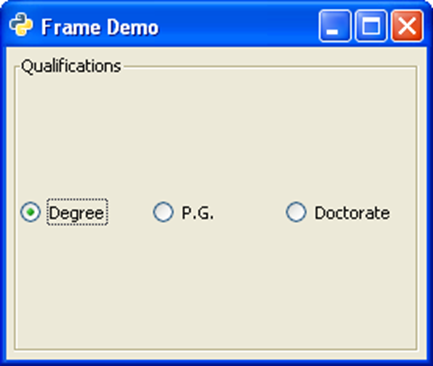
In order to draw border around the box, it is placed in a Frame widget, and it is added to the toplevel window.
frm = gtk.Frame()
frm.add(hb)
self.add(frm)
Example
Observe the following code −import gtk class PyApp(gtk.Window): def __init__(self): super(PyApp, self).__init__() self.set_title("Frame Demo") self.set_default_size(250, 200) self.set_border_width(5) frm = gtk.Frame() hb = gtk.HButtonBox() btn1 = gtk.RadioButton(None,"Degree") hb.add(btn1) btn2 = gtk.RadioButton(btn1,"P.G.") hb.add(btn2) btn3 = gtk.RadioButton(btn1,"Doctorate") hb.add(btn3) frm.add(hb) frm.set_label("Qualifications") self.add(frm) self.connect("destroy", gtk.main_quit) self.show_all() if __name__ == '__main__': PyApp() gtk.main()The above code will generate the following output −


No comments:
Post a Comment