
The redirect interface allows you to send all the visitors or traffic
of a Domain or a particular webpage to a new domain. For example, if
you moved your website to a new domain and you want to redirect all your
visitors to new website, you need to setup redirect. There are two
types of redirects available −
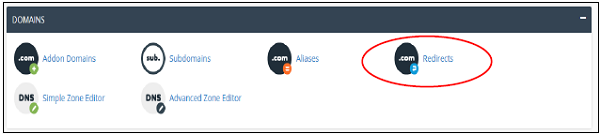
Step 1 − Click on Redirects found in Domains section of cPanel Home.
 Step 2 − Choose your redirect type from the Dropdown Menu, Permanent or Temporary Redirect.
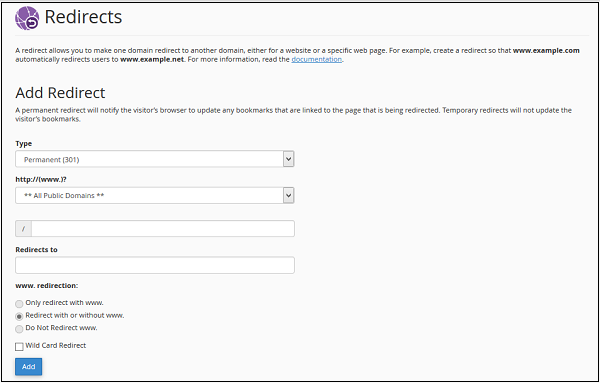 Step 3 − Choose the Domain Name you want to redirect from the Dropdown menu of lists of domain.
Step 4 − In the next textbox, enter the path of page or path of folder you want to redirect.
Step 5 − Enter full URL of the page your domain will be redirected to, in Redirect to textbox. You will also need to specify the protocol as well, http:// or https://.
Step 6 − Select www. redirection, it determines that if you want your domain to be redirected with www or not. Explanations of options given below.
Step 7 − Select Wild Card Redirection checkbox, if you want to redirect all files and folders in sub folder to the same file or folder in new domain. For example, with wildcard redirection www.example.com/pic.jpg will redirect to www.new–example.com/pic.jpg. Without wildcard redirection www.example.com/pic.jpg will redirect to Select the checkbox accordingly.
Step 8 − Click on Add button to save the settings.
Permanent (301) Redirect
This one redirects your visitors to a new website and updates your visitor’s bookmarks. This also directs search engines to your new website. This redirect is permeant and means that page has moved. So, the Search Engine and other crawlers update their data according to the new link. Popularity and SEO of link remains same as the old link had.Temporary (302) Redirect
This one redirects your visitors to a new website, but does not update your visitor’s bookmark. Search Engines still index your original website. This redirect is temporary and search engine thinks that the new link is going to get removed, hence it does not have same popularity like the old link.Create a Redirect
To create a redirect, please follow these steps −Step 1 − Click on Redirects found in Domains section of cPanel Home.
Step 2 − Choose your redirect type from the Dropdown Menu, Permanent or Temporary Redirect.
Step 3 − Choose the Domain Name you want to redirect from the Dropdown menu of lists of domain.Step 4 − In the next textbox, enter the path of page or path of folder you want to redirect.
Step 5 − Enter full URL of the page your domain will be redirected to, in Redirect to textbox. You will also need to specify the protocol as well, http:// or https://.
Step 6 − Select www. redirection, it determines that if you want your domain to be redirected with www or not. Explanations of options given below.
- Only redirect with www. − This redirect will be done only if user has entered www. in URL.
- Redirect with or without www. − This redirect will always be done, does not depends on whether user has entered www. in URL or not.
- Do not redirect www. − This redirect will not work, if the user has entered www. in URL.
Step 7 − Select Wild Card Redirection checkbox, if you want to redirect all files and folders in sub folder to the same file or folder in new domain. For example, with wildcard redirection www.example.com/pic.jpg will redirect to www.new–example.com/pic.jpg. Without wildcard redirection www.example.com/pic.jpg will redirect to Select the checkbox accordingly.
Step 8 − Click on Add button to save the settings.


No comments:
Post a Comment