
This is a base class for horizontal (gtk.Hruler) and vertical (gtk.Vruler) rulers that are useful to show mouse pointer's position in window. A small triangle in the ruler indicates the location of pointer.
Ruler objects are created with their respective constructors −
The measurement of horizontal ruler is in pixels. Its minimum and maximum values are 0 and 400 respectively. It is placed in the upper row of a gtk.VBox.
Ruler objects are created with their respective constructors −
hrule = gtk.Hruler()
vrule = gtk.Vruler()
The following gtk.Ruler class methods are available for both the derived classes −
- Ruler.set_metric() − This sets the measurement unit. The predefined metric constants are: gtk.PIXELS (default), gtk.INCHES and gtk.CENTIMETERS
- Ruler.set_range() − This sets the lower and upper bounds, position and maximum size of ruler.
The measurement of horizontal ruler is in pixels. Its minimum and maximum values are 0 and 400 respectively. It is placed in the upper row of a gtk.VBox.
hrule = gtk.HRuler()
hrule.set_metric(gtk.PIXELS)
hrule.set_range(0, 4,0,0.5)
vbox.pack_start(hrule)
The lower row of Vbox contains an HBox. A vertical ruler and a TextView widget, in which a multi-line text can be entered, is packed.
vrule=gtk.VRuler()
vrule.set_metric(gtk.PIXELS)
vrule.set_range(0, 4, 10, 0.5)
hbox.pack_start(vrule)
Example
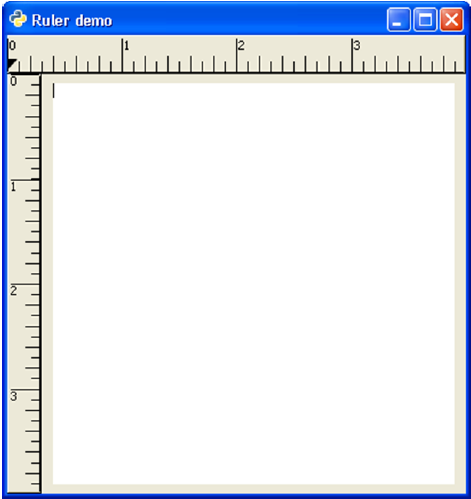
Observe the following code −import gtk class PyApp(gtk.Window): def __init__(self): super(PyApp, self).__init__() self.set_title("Ruler demo") self.set_size_request(400,400) self.set_position(gtk.WIN_POS_CENTER) vbox = gtk.VBox() tv = gtk.TextView() tv.set_size_request(350,350) hrule = gtk.HRuler() hrule.set_metric(gtk.PIXELS) hrule.set_range(0, 4,0,0.5) vbox.pack_start(hrule) hbox = gtk.HBox() vrule = gtk.VRuler() vrule.set_metric(gtk.PIXELS) vrule.set_range(0, 4, 10, 0.5) hbox.pack_start(vrule) halign = gtk.Alignment(0.5, 0.5, 0, 0) halign.add(tv) hbox.pack_start(halign, False, True, 10) vbox.add(hbox) self.add(vbox) self.connect("destroy", gtk.main_quit) self.show_all() PyApp() gtk.main()The output generated by the above program resembles an MS Word document −


No comments:
Post a Comment